Home
Why Tablet Editing Is Changing How Creators Work and Which Device You Should Buy
iPad Pro M4 (DaVinci Resolve optimized)
Samsung S10 Ultra (Included S-Pen)
Surface Pro (Full Desktop Apps)
For years, the idea of professional tablet editing was dismissed as a novelty. Creators were tethered to bulky workstations or high-powered laptops, limited by the mobile processors and simplified apps of the time. However, as of late 2026, the hardware gap has narrowed significantly. With the introduction of desktop-class silicon into slim tablet frames, the question is no longer "Can I edit on a tablet?" but rather "How do I build a workflow that maximizes this portability?"
Whether you are a social media creator churning out daily reels or a professional photographer culling thousands of RAW files, the tablet offers a tactile, focused environment that a mouse and keyboard often lack. This guide explores the current state of mobile editing, from the thermal realities of high-end chips to the ergonomic secrets used by industry veterans to maintain speed without sacrificing wrist health.
Can a Tablet Actually Replace Your Professional Editing Laptop?
The debate over "laptop replacement" is often framed as a binary choice, but the reality is more nuanced. While the latest M4 chips found in high-end tablets are technically "laptop grade," they operate under different physical constraints. The primary hurdle remains thermal management. Unlike a MacBook Pro or a dedicated gaming laptop, tablets are fanless devices. During intensive tasks like exporting a ten-minute 4K video with heavy color grading, the device will eventually encounter thermal throttling to protect its internal components. According to community discussions among professional editors , this can lead to a noticeable drop in export speeds compared to actively cooled systems.
Software also remains a significant factor. While iPadOS and Android have made strides, they still "throttle" the user experience in subtle ways. For instance, Adobe Lightroom on mobile is a powerful tool, but it lacks the deep folder-based organization and plugin support of Lightroom Classic. For many, the tablet is not a total replacement but a highly capable companion that handles 80% of the creative process—culling, rough cutting, and basic grading—leaving the final heavy lifting for the desktop.
However, the portability factor is undeniable. An iPad Pro M4 weighs approximately 446 grams, making it a fraction of the weight of even the lightest professional laptops. For creators who travel frequently or work in unconventional spaces, the ability to pull a fully functional editing suite out of a small bag is a significant advancement in creative freedom.
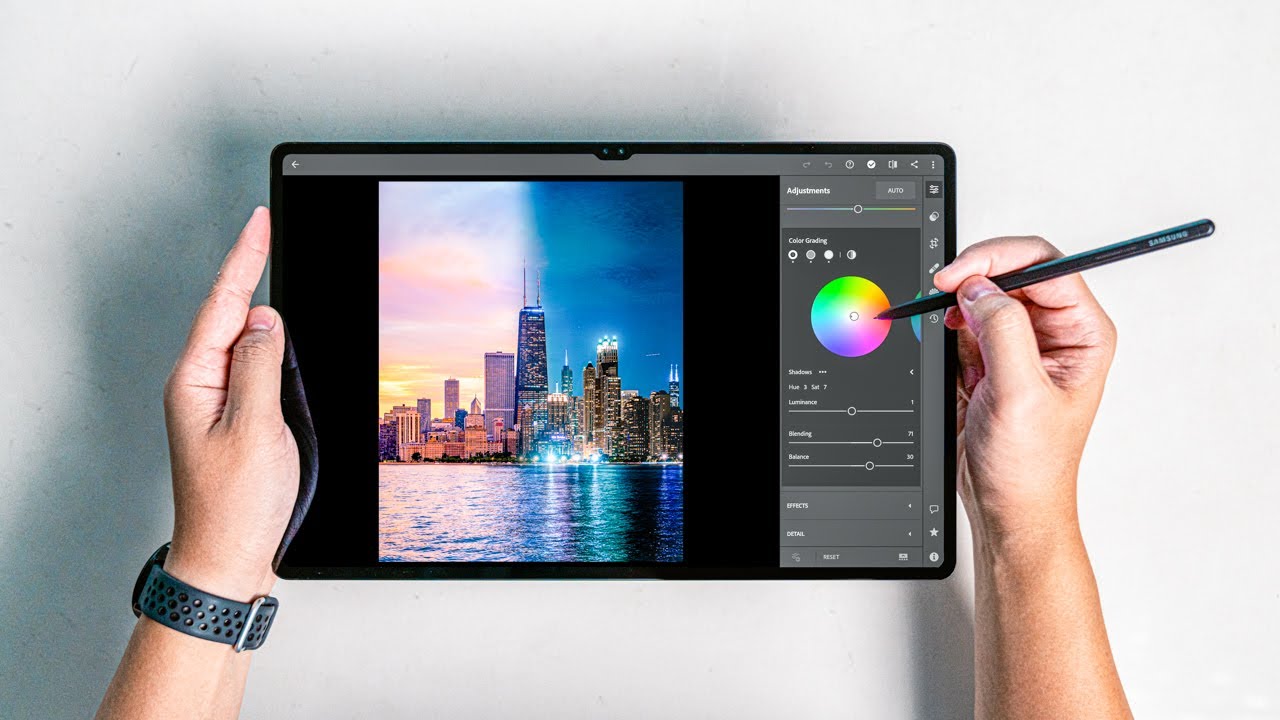
Image source: YouTube
Which High-End Tablets Stand Out for Professional Editing?
When selecting a device for professional work, three ecosystems dominate the market. Each offers a distinct approach to the creative workflow, and the right choice depends largely on your existing software commitments and hardware preferences.
The Apple Ecosystem: iPad Pro M4
The iPad Pro M4 is widely regarded as a top-tier choice for mobile creators. Its Tandem OLED display provides up to 1,000 nits of full-screen brightness, which is essential for accurate HDR video grading. For those working with large video files, the 1TB and 2TB models are particularly noteworthy as they scale up to 16GB of RAM, providing the headroom needed for complex timelines in DaVinci Resolve. The Apple Pencil Pro adds haptic feedback and barrel roll capabilities, which many illustrators and photo editors find highly intuitive.
The Android Alternative: Samsung Galaxy Tab S10 Ultra
For users who prefer the Android ecosystem, the Samsung Galaxy Tab S10 Ultra stands out for its massive 14.6-inch screen. One of its most significant advantages is the inclusion of the S-Pen in the box, which features a slightly "softer" tip that many users find offers a superior feel for masking and drawing compared to the harder plastic of the Apple Pencil. Furthermore, Android’s more traditional file system makes managing large project folders significantly easier than the often-restrictive iPadOS environment.
The Windows Hybrid: Microsoft Surface Pro
The Surface Pro remains the only option for creators who absolutely require "full-fat" desktop software. Because it runs Windows, you can install the exact same versions of Premiere Pro, After Effects, and Lightroom Classic that you use on your workstation. While it may not have the same "mobile-first" polish as the iPad, its versatility as a true 2-in-1 makes it a strong contender for those who don't want to learn new mobile-app interfaces.
| Feature | iPad Pro M4 | Samsung S10 Ultra | Surface Pro (Latest) |
|---|---|---|---|
| Display Brightness | 1,000 Nits (SDR/HDR) | 900+ Nits (Peak) | 600 Nits |
| Max RAM | 16GB (on 1TB+ models) | 16GB | 32GB |
| Stylus Included? | No ($129 extra) | Yes | No ($129 extra) |
| Best For | DaVinci Resolve / Procreate | Multi-tasking / S-Pen feel | Full Desktop Adobe Suite |
Budget Tablets That Perform Well for Hobbyists and Social Media Creators
You do not need to spend two thousand dollars to get a functional editing setup. For many social media creators, a mid-range tablet provides more than enough power for CapCut edits and Lightroom filtering. The iPad Air (M1 or M2 models) is a significant value choice, often costing nearly a thousand dollars less than a fully specced Pro model while still handling 4K video timelines with ease. It lacks the high-refresh-rate ProMotion display, but for standard video editing, this is a minor trade-off.
In the Android space, the Lenovo Idea Tab Pro (12.7") has gained traction as a high-value alternative. With a 3K display and an included stylus, it offers a premium viewing experience for under $400. While it may struggle with extremely complex 4K multi-cam sequences, it is more than capable for standard YouTube or TikTok workflows. For those on an extreme budget, the Amazon Fire Max 11 provides a basic entry point for casual photo filtering and simple video cuts, though its app ecosystem is more limited than Google Play or the App Store.
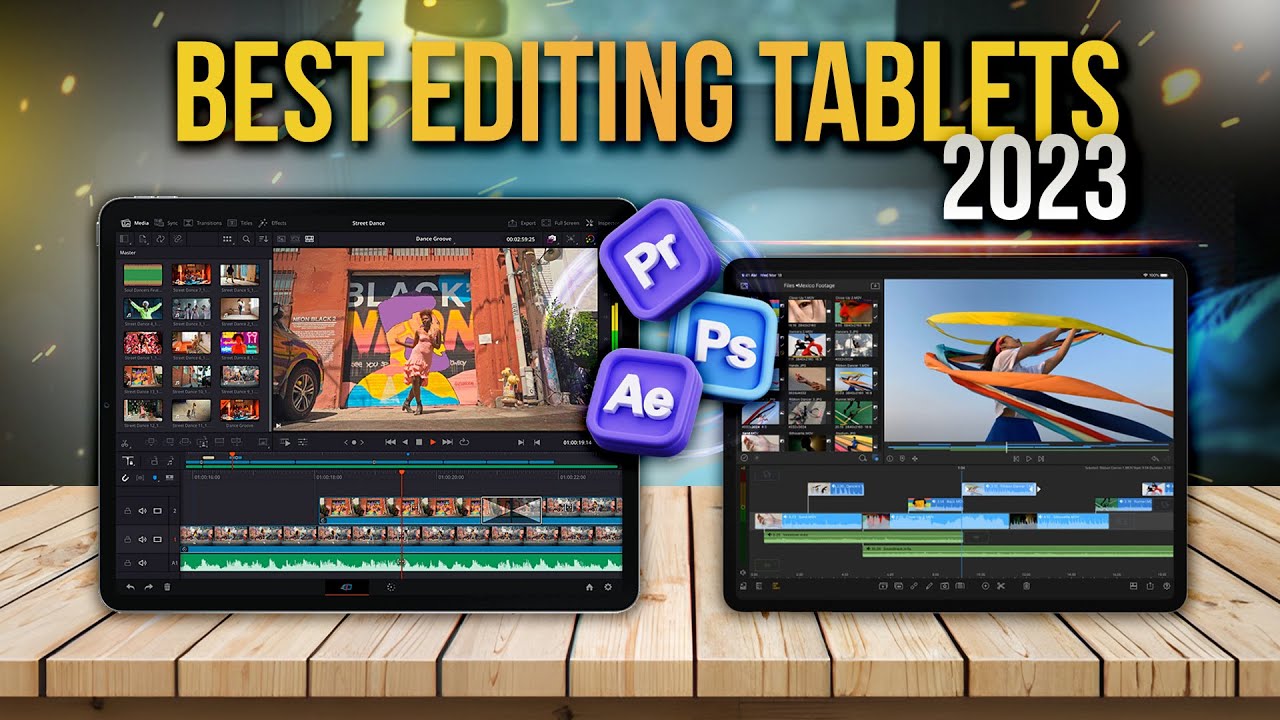
Image source: YouTube
How to Choose the Right Editing Software for Your Tablet
Hardware is only half the battle; the software you choose will define your daily experience. The mobile app market has matured, with several "pro" titles now offering features that were previously exclusive to desktops.
- DaVinci Resolve (iPad): A powerhouse for color grading and editing. Note that some advanced panels are hidden by default to save screen space; using a keyboard with shortcuts is highly recommended for full access.
- LumaFusion: Widely considered one of the most stable video editors for mobile. Its ability to export XML files makes it a vital part of a "Bridge Workflow" for those moving projects to Premiere Pro later.
- CapCut: The dominant choice for social media. Its mobile-first interface and vast library of templates make it exceptionally efficient for quick-turnaround content.
- Lightroom Mobile: Highly optimized for touch, though users should be aware of the differences in file organization between the iPad and Android versions.
Before buying, check if your preferred app supports your hardware's specific features. For example, DaVinci Resolve requires an M1 chip or better for optimal performance, while pressure sensitivity in Lightroom may vary between the Apple Pencil and the S-Pen.
How to Master the Tablet File System Without Losing Your Work
One of the most common pitfalls for new tablet editors is file management. On iPadOS, the default behavior is to save everything to the "Photos" app. However, this can be a disaster for professional organization, as the Photos app sorts items by "Capture Date" rather than when you imported them. To maintain a professional workflow, you must manually use the "Save to Files" option. This allows you to create dedicated project folders, similar to a desktop environment, keeping your RAW footage, assets, and exports in one place.
Android tablets generally offer a more traditional folder-based system, which many find more intuitive for large-scale video projects. Regardless of the OS, a high-quality USB-C hub is an essential accessory. This allows you to connect SD cards directly from your camera and edit off external SSDs. Editing directly from an external drive is a significant advancement that prevents your tablet's internal storage from filling up instantly with 4K footage.
The Bridge Workflow for Moving Projects Between Tablet and Desktop
The "Bridge Workflow" is a multi-step strategy used by professionals to combine the portability of a tablet with the power of a workstation. It typically follows these three steps:
- Step 1: Culling and Flagging
- Use your tablet to review photos or footage while away from your desk. In Lightroom, you can flag your "keepers" while sitting on a couch or during a flight. These flags sync automatically to your desktop via the cloud.
- Step 2: The Rough Cut
- Assemble your timeline on the tablet using LumaFusion or DaVinci Resolve. This is the most time-consuming part of editing, and doing it in a comfortable, mobile environment can prevent burnout.
- Step 3: The Desktop Finish
- Export your project file (XML or .drp) to your desktop. Here, you can perform final color grading, add complex motion graphics, and run the final export on a machine with active cooling.
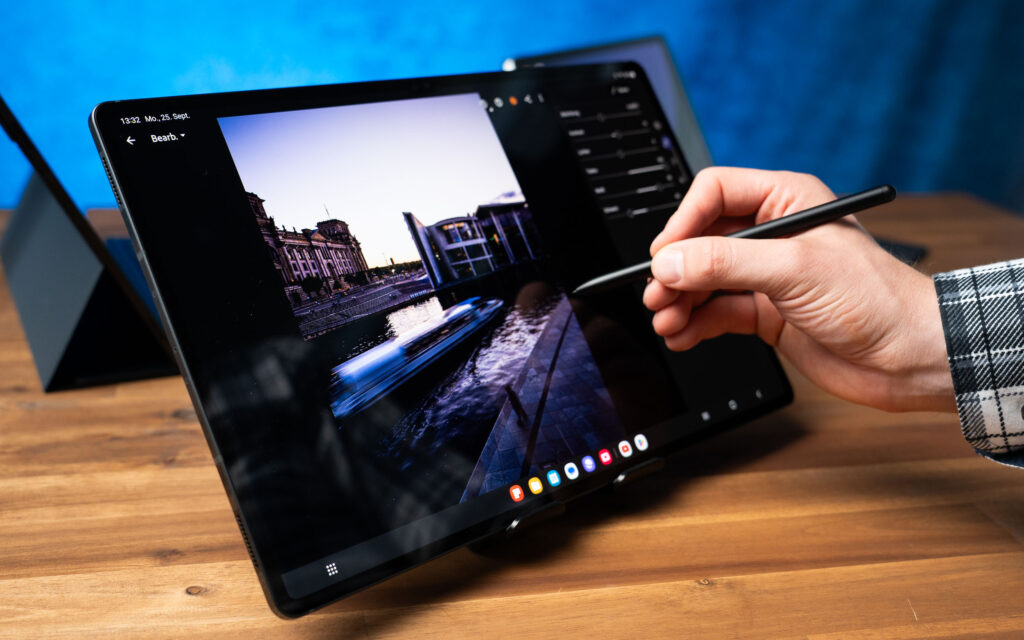
Image source: MyNextTablet
Professional Ergonomics and the Pen-in-Hand Technique
Long editing sessions on a tablet can lead to Repetitive Strain Injury (RSI) if not handled correctly. Professional editors often use the "Pen-in-Hand" technique to maintain speed. This involves tucking the stylus between the thumb and the palm while typing on a keyboard, allowing for an instant transition back to the screen without having to pick up the pen repeatedly. This small adjustment can save minutes of cumulative time over a long session.
Another expert recommendation is the "Three-Day Challenge." Many editors suggest ditching the mouse entirely for 72 hours to force the brain to adapt to the precision of a stylus. According to veteran editors who use Wacom tablets , once you overcome the initial learning curve, the ergonomic benefits for your wrist are substantial. To further reduce fatigue, some creators use a DIY hack: wrapping a small piece of foam or a rubber grip around the Apple Pencil or S-Pen to make it thicker and easier to hold during marathon sessions.
"The goal of tablet editing isn't just to be mobile; it's to change the physical relationship you have with your work. Masking a photo with a pen feels like painting; doing it with a mouse feels like data entry."
Frequently Asked Questions
Is an iPad Pro better than a MacBook for 4K video editing?
While the iPad Pro M4 is exceptionally capable, it is not necessarily "better" than a MacBook for all users. The iPad excels in portability and touch-based interaction, but the MacBook offers active cooling (fans) and a more robust file system. For long, complex 4K exports, the MacBook will generally maintain higher speeds without throttling.
What is a high-value tablet for running CapCut smoothly?
The iPad Air (M2) or the Lenovo Idea Tab Pro are both excellent choices. CapCut is well-optimized for mobile hardware, so you don't need the top-tier Pro models to get a smooth experience. Even the base iPad (10th Gen) can handle most 1080p and basic 4K CapCut projects without significant lag.
Do I need a stylus for photo editing on a tablet?
For basic culling and global adjustments (like exposure or contrast), your finger is sufficient. However, for precision tasks like masking, spot removal, or dodging and burning, a stylus is highly recommended. It provides a level of control that is difficult to achieve with touch alone.
Can Android tablets run DaVinci Resolve?
As of late 2026, DaVinci Resolve remains an iPadOS exclusive. However, Android users have access to powerful alternatives like LumaFusion and PowerDirector, which offer many of the same professional-grade editing features.
How do I stop my tablet from overheating while exporting video?
To manage heat, try removing any thick protective cases before starting a long export. Editing in a cool environment and keeping the tablet on a hard, flat surface (rather than a lap or bed) can also help dissipate heat more effectively.
Key Takeaways for Building Your Tablet Suite
- Choose your ecosystem based on your "Bridge" needs: iPad for Resolve/Procreate, Surface for Premiere, or Samsung for S-Pen feel.
- Invest in a USB-C hub to enable direct editing from external SSDs and SD cards.
- Commit to the "Three-Day Challenge" to master the stylus and protect your wrist health.
- Use the "Save to Files" method on iPadOS to avoid the organizational chaos of the Photos app.
- Leverage the Bridge Workflow by doing your culling and rough cuts on the tablet and finishing on a desktop.
- Prioritize RAM (16GB+) if you plan on working with complex 4K timelines or high-resolution RAW files.
Start by moving your next culling session to a tablet to see how a more tactile approach changes your creative energy.