Home
How to Choose an Effective Editing Keyboard for Your Professional Video and Audio Workflow
In the high-stakes world of professional post-production, time is the most valuable currency. Every second spent hunting through nested menus for a "Ripple Delete" or "Blade" tool is a second lost to the "menu tax"—a cumulative drain on creativity and productivity. A standard office keyboard, while functional for emails, often lacks the tactile feedback and specialized layout required for frame-accurate scrubbing and rapid-fire shortcut execution.
Transitioning to a dedicated editing keyboard is less about luxury and more about cognitive offloading. By shifting essential functions from visual search to tactile memory, editors can maintain a "flow state" where the hardware disappears, and the focus remains entirely on the story. Whether you are a colorist in DaVinci Resolve, a narrative editor in Premiere Pro, or an audio engineer in Pro Tools, selecting the right peripheral can significantly impact your daily output and ergonomic health.
Why Your Standard Keyboard Might Be Slowing Down Your Creative Edits
The primary limitation of a standard keyboard is its lack of specialized input methods. While "J-K-L" scrubbing is a universal standard, it lacks the nuance of a physical dial. Furthermore, the visual density of professional Non-Linear Editors (NLEs) means that even seasoned pros occasionally forget the specific modifier combinations for complex tasks like slip-and-slide edits or multi-cam switching.
According to industry standards highlighted by Digital Camera World , color-coded legends and dedicated transport controls are essential for preventing visual fatigue. When your brain associates "Green" with trimming and "Blue" with transport, the speed of execution increases exponentially. This shift from "searching" to "executing" is the hallmark of a professional setup.
Dedicated Hardware Options for DaVinci Resolve Power Users
Blackmagic Design has taken a unique approach to hardware by creating devices that are deeply integrated with their software's internal logic. Unlike general-purpose keyboards that merely send HID (Human Interface Device) signals, Blackmagic's panels communicate directly with the DaVinci Resolve engine.
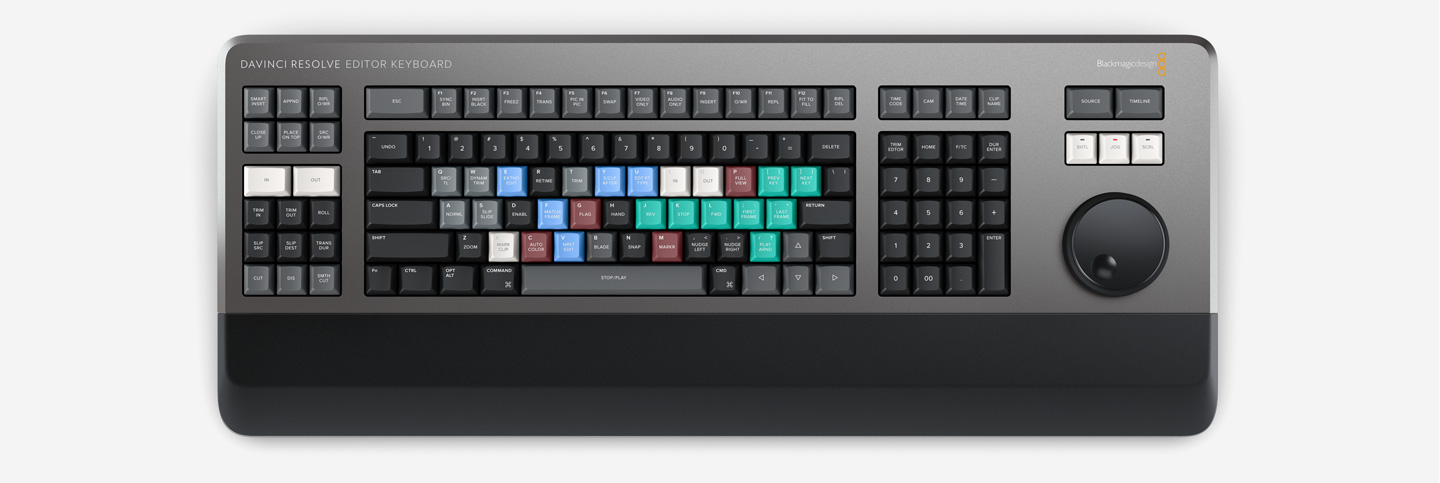
Image source: Blackmagic Design
The Mechanics of the DaVinci Resolve Speed Editor Search Dial
The standout feature of the DaVinci Resolve Speed Editor is the machined metal search dial. This is not a simple plastic wheel; it features an integrated electronic clutch and high-quality roller bearings. In "Shuttle" mode, the dial provides a spring-loaded return-to-center feel, allowing you to fly through hours of footage and then snap back to a standstill instantly. In "Jog" mode, it offers smooth, frame-by-frame precision for finding the exact point of a cut.
This hardware enables the "Source Tape" workflow, a notably innovative method where all clips in a bin are treated as one continuous reel. Instead of clicking through dozens of thumbnails, you simply spin the dial to review your entire day's shoot. This mimics the linear speed of old-school tape editing while retaining the flexibility of digital files.
Critical Compatibility Warnings for Blackmagic Hardware on Windows
A common pitfall for professionals is attempting to use the full-sized DaVinci Resolve Editor Keyboard as their primary "daily driver" for office work on Windows. Because the hardware is designed with a Mac-centric layout, Windows users often face significant hurdles. According to user reports on the Blackmagic Forum , the keyboard lacks several standard Windows keys, including "Delete," "Print Screen," and "Numlock."
This means performing a simple "Ctrl+Alt+Del" to lock your computer or access the Task Manager is impossible without a secondary keyboard or software remapping. For those committed to using this hardware on Windows, tools like Microsoft PowerToys or SharpKeys are essential for remapping the "Clear" key to "Delete" or assigning function keys to missing Windows commands. Furthermore, the keyboard's significant weight—approximately 2.45kg—makes it a permanent fixture on your desk, not something you can easily move aside for other tasks.
High-Performance Shortcut Keyboards for Premiere Pro and Final Cut Pro
For editors who switch between multiple NLEs or who prefer a traditional typing experience, shortcut-specific keyboards offer a balanced middle ground. These devices use standard layouts but add high-visibility, color-coded legends that correspond to specific software commands.
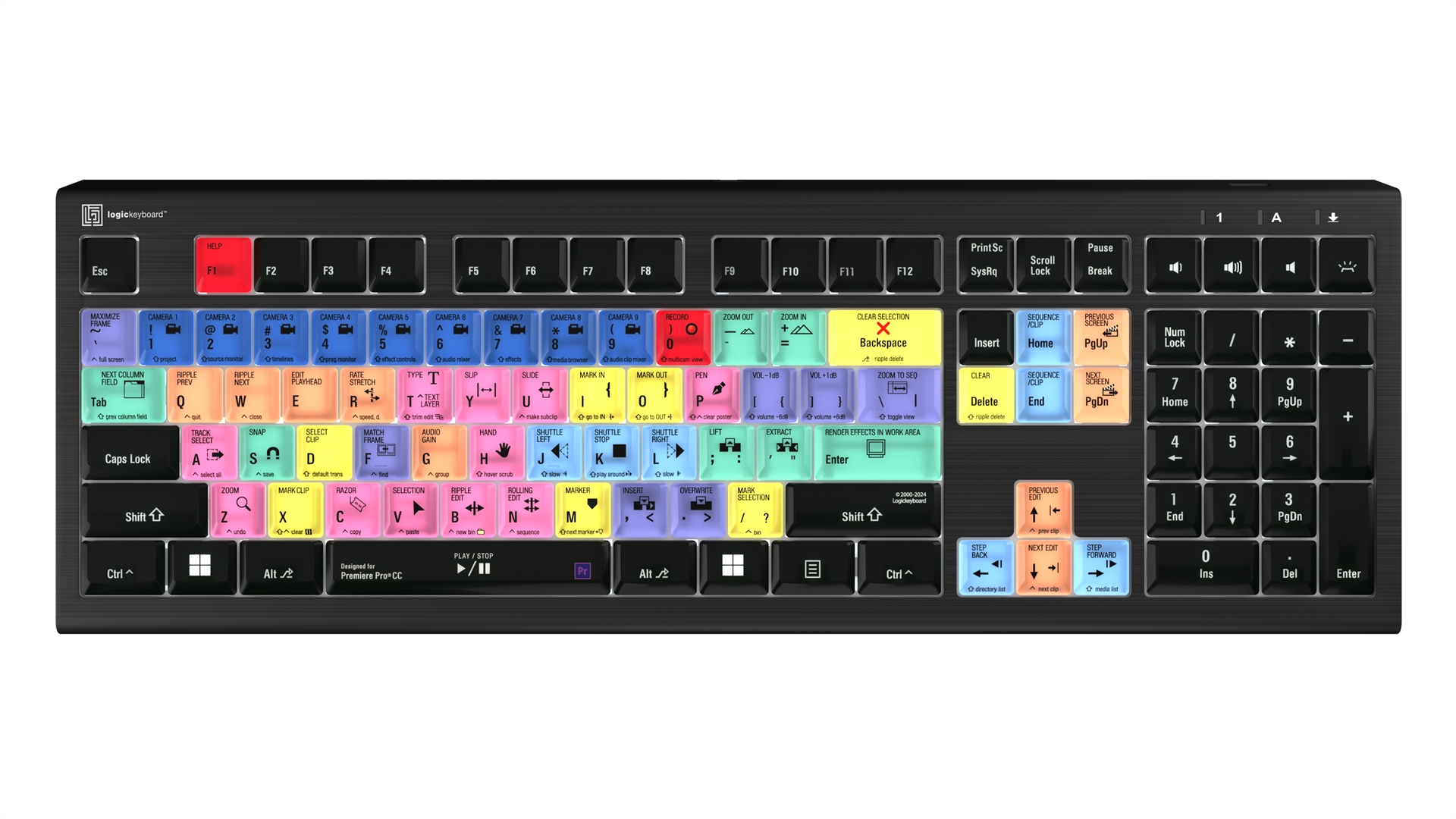
Image source: Logickeyboard
Exploring the LogicKeyboard Astra 2 and Backlit Series
The LogicKeyboard Astra 2 is widely considered one of the top choices for professional suites. It features a built-in USB 3.0 hub, which is a significant advantage for connecting license dongles or high-speed shuttle drives directly to the keyboard. The keys use a scissor-switch mechanism that provides a low-profile, quiet typing experience, making it suitable for shared edit bays.
The color-coding logic on the Astra 2 is particularly effective:
- Green Keys: Typically reserved for trimming and clip manipulation.
- Blue Keys: Dedicated to transport controls (Play, Stop, Record).
- Yellow/Orange Keys: Often used for tool selection (Blade, Selection, Slip).
Similarly, the Editors Keys Backlit Series offers a similar benefit with an emphasis on low-light environments. Many professional edit suites are kept dim to ensure color accuracy on monitors; a backlit shortcut keyboard ensures that you aren't hunting for keys in the dark, which can lead to eye strain and errors.
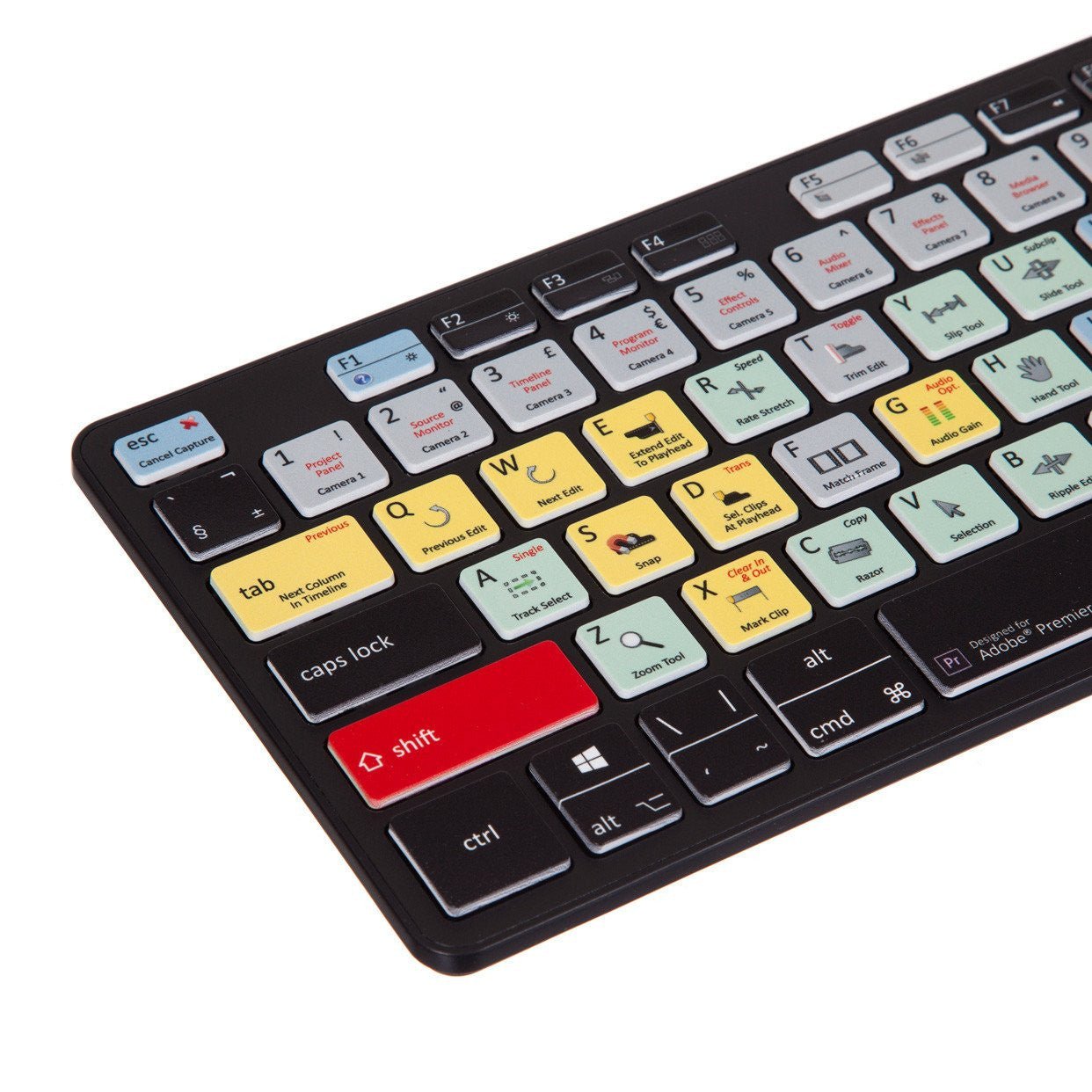
Image source: Editors Keys
Versatile Generalist Keyboards That Support Professional Editing
Not every editor wants a keyboard covered in colorful icons. Many professionals prefer a clean, minimalist aesthetic that can transition seamlessly from video editing to scriptwriting or client emails. In this category, high-end peripherals with robust software customization are the leading contenders.
Customizing the Logitech MX Keys S for Video Workflows
The Logitech MX Keys S is a top-rated option for editors who value a slim profile and multi-device connectivity. While it lacks physical shortcuts, the Logi Options+ software allows for deep customization. Users can create "Smart Actions"—macros that chain multiple steps into a single press. For example, you could program a single key to "Save Project, Export to Media Encoder, and Open the Export Folder."
Another significant advantage is the "Flow" feature, which allows you to control multiple computers with one keyboard. This is highly effective for editors who use a powerful workstation for rendering but keep a laptop nearby for client communication or asset management. You can literally copy a file on your Mac and paste it onto your Windows machine using the same keyboard and mouse setup.
The Rise of Mechanical Keyboards in Modern Edit Suites
In recent years, the "custom mechanical" trend has bled into the professional editing world. Editors are increasingly moving away from membrane and scissor switches in favor of the tactile precision and durability of mechanical boards. The primary draw here is the ability to customize the "feel" of every single keypress.
Designing a Frankenstein Build for Specific Tactile Feedback
A strategy gaining popularity in communities like r/editors is the "Frankenstein" build. Because many modern mechanical keyboards are "hot-swappable," you can mix and match different switch types on the same board to suit your workflow:
- Linear Switches for Modifiers: Use smooth, linear switches (like Cherry MX Red) for keys like CMD, ALT, and SHIFT. These require less force to hold down, reducing fatigue during complex multi-key shortcuts.
- Clicky Switches for Navigation: Use tactile, clicky switches (like Cherry MX Blue) for the arrow keys and number pad. The audible "click" provides confirmation that you've moved exactly one frame or entered a specific timecode value.
- Silent Switches for the Main Cluster: Use dampened switches for the main typing area to ensure you aren't distracting yourself or others in a shared studio environment.
For those who want a mechanical feel without the bulk, the Keychron K3 Max is a premier low-profile choice. It maintains the slim ergonomics of an Apple Magic Keyboard but provides the tactile satisfaction of mechanical switches. On the budget end, the AULA F75 has emerged as a high-value alternative, offering a premium gasket-mounted feel at a fraction of the cost of professional studio gear.
Technical Considerations for Latency and Ergonomics
When choosing between wired and wireless options, editors often worry about latency. However, in the context of video editing, the "8,000Hz polling rate" required for competitive gaming is largely irrelevant. The time it takes for a "J" keypress to register in Premiere Pro is limited more by the software's processing than the keyboard's connection speed.
The real debate is between Low-Profile and High-Profile keys. Many editors prefer low-profile scissor switches (like those on the MX Keys or Astra 2) because the short travel distance allows for faster "finger-gliding" across the board. High-profile mechanical keys, while more satisfying to type on, require more vertical movement, which can lead to increased wrist extension if a proper wrist rest is not used. Ergonomic health in the edit suite is a marathon, not a sprint; choosing a board that keeps your wrists in a neutral position is a significant step forward in preventing long-term injury.
Comparing the Top Editing Keyboards for Different Workflows
The following table provides a technical breakdown of how the leading options compare across key professional metrics.
| Model | Primary Software | Switch Type | Connection | Unique Feature |
|---|---|---|---|---|
| Blackmagic Speed Editor | DaVinci Resolve | Mechanical (Custom) | BT / USB-C | Machined Metal Search Dial |
| LogicKeyboard Astra 2 | Premiere / FCP / Avid | Scissor-Switch | Wired (Dual USB) | Built-in USB 3.0 Hub |
| Logitech MX Keys S | Generalist / Multi-App | Membrane (Perfect Stroke) | BT / Logi Bolt | Smart Action Macros |
| Keychron K3 Max | Custom / Mechanical | Low-Profile Mech | BT / 2.4GHz / Wired | Hot-Swappable Switches |
| Editors Keys Backlit | Audio / Video | Membrane | Wired / Wireless | 3-Level Backlighting |
Frequently Asked Questions About Editing Peripherals
- Can I use the DaVinci Speed Editor with Adobe Premiere Pro?
- Technically, the Speed Editor is designed exclusively for DaVinci Resolve. While some third-party developers have created "translators" to map the dial to other software, the experience is often buggy and lacks the smooth, native integration found in Resolve. If you primarily use Premiere, a dedicated shortcut keyboard or a Logitech Creative Console is a more reliable choice.
- Are mechanical keyboards too loud for a professional edit suite?
- This depends entirely on the switch type. "Clicky" switches (Blue) are likely too loud for a shared environment. However, "Linear" (Red) or "Tactile" (Brown) switches can be very quiet, especially if the keyboard uses a gasket-mount design or O-rings to dampen the sound. Many editors find the subtle thud of a silent mechanical board less distracting than the high-pitched clack of a cheap membrane keyboard.
- Do I really need a dedicated keyboard if I already know all the shortcuts?
- Even if you have mastered the shortcuts, a dedicated keyboard offers ergonomic and tactile benefits. Physical dials provide a level of scrubbing precision that keys simply cannot match. Additionally, the color-coding acts as a safety net during high-pressure "crunch" periods when mental fatigue can lead to simple mistakes.
- What is the most effective budget way to upgrade my editing setup?
- The most cost-effective upgrade is a set of high-quality shortcut stickers or a silicone skin for your existing keyboard. This provides the visual map of your NLE's shortcuts for under $30. The next step would be a budget mechanical board like the AULA F75, which offers a professional feel without the "studio gear" price tag.
- Why is the Blackmagic Editor Keyboard so heavy?
- The 2.45kg weight is intentional. It ensures the keyboard remains perfectly stationary on your desk even when you are aggressively spinning the search dial or performing rapid-fire edits. This stability is a key part of the professional "feel" that differentiates it from consumer-grade peripherals.
Key Takeaways for Choosing Your Editing Keyboard
- Prioritize Software Integration: If you spend 90% of your time in Resolve, the Speed Editor is a premier choice that offers functionality other boards cannot replicate.
- Consider the "Windows Tax": Be prepared for missing keys (Delete, Print Screen) if using Blackmagic hardware on a Windows machine; have remapping software ready.
- Visual Cues Matter: Shortcut keyboards like the Astra 2 reduce cognitive load through color-coding, which is highly impactful for long-form narrative editing.
- Don't Fear Wireless: Modern wireless latency is a non-issue for editing; choose based on your preference for a clean desk versus "forever-on" wired reliability.
- Tactile Customization: Mechanical keyboards allow you to build a "Frankenstein" layout with different switch weights for modifiers versus navigation keys.
- Ergonomics Over Aesthetics: Low-profile keys often allow for faster finger movement, but high-profile mechanicals offer better tactile feedback—always pair the latter with a wrist rest.
To begin your upgrade, identify the three shortcuts you use most frequently and determine if a physical dial or a dedicated macro key would most effectively speed up those specific actions.