Home
How to Make a PDF Not Editable and Secure Your Documents
To prevent immediate editing, you can use three primary methods depending on your security needs:
- 1 Flattening: Use "Print to PDF" to merge all layers into a static image.
- 2 Permissions: Use Adobe Acrobat or online tools to set a "Permissions Password."
- 3 OS Lock: Right-click the file and select "Read-only" (Windows) or "Get Info" (Mac).
For high-security documents, combining flattening with AES-256 encryption stands out as a top choice for professional protection.
In a digital landscape where document integrity is paramount, knowing how to secure your files is essential. Whether you are sending a legal contract, a creative portfolio, or an invoice, ensuring the recipient cannot alter the content is a critical step in professional communication. However, simply saving a file as a PDF does not inherently make it unchangeable. Modern software makes it remarkably easy to modify text, images, and form fields unless specific precautions are taken.
This guide explores the various levels of PDF security, from basic file-level restrictions to advanced encryption methods. We will address the common pitfalls that leave documents vulnerable and provide actionable steps to ensure your PDFs remain exactly as you intended them to be.
The Quickest Ways to Lock Your PDF Right Now
When users ask how to make a PDF not editable, they are usually looking for one of two things: preventing the file from being saved over (Read-Only) or preventing the content inside from being modified (Restricted Permissions). Understanding the difference is the first step toward effective security.
Read-Only status is a file-system attribute. It tells the operating system that the file should not be modified or deleted. While this prevents someone from accidentally saving changes to the original file, it does not stop them from "Saving As" a new copy and editing that version. It is a casual deterrent rather than a robust security measure.
Restricted Permissions , on the other hand, are embedded within the PDF metadata itself. This method uses encryption to tell PDF viewing software what actions are allowed. You can specifically block printing, copying text, or modifying form fields. According to Tungsten Automation , professional-grade tools allow for granular control, ensuring that even if a user can open the file, their ability to interact with the content is strictly limited.
How to Flatten a PDF Using the Print-to-PDF Method
Flattening is a highly effective way to remove active elements from a document. When you create a PDF with form fields, signatures, or multiple layers of annotations, those elements remain "live." Flattening merges all these layers into a single, static background image layer. This process effectively kills the ability for anyone to click into a text box and change the numbers or words.
Step-by-Step for Google Chrome
You don't need expensive software to flatten a document. If you have a fillable PDF open in your browser, follow these steps:
- Open the PDF file in Google Chrome by dragging it into a browser tab.
-
Click the
Print
icon in the top right corner or press
Ctrl + P(Windows) orCmd + P(Mac). - In the "Destination" dropdown menu, select Save as PDF .
- Click Save and choose a new filename.
This "re-printing" process strips away the interactive form data, leaving behind a visual representation that is much harder to manipulate. It is widely considered one of the most accessible ways to secure a form before sending it to a client.
Step-by-Step for Windows 10/11
Windows users have a built-in driver specifically for this purpose. If you are viewing a PDF in any application (like Edge or Word):
- Select File > Print .
- Choose Microsoft Print to PDF as your printer.
- Click Print .
- Save the file to your desired location.
This method is particularly useful for removing "Fillable Field" highlights that can be distracting or tempting for unauthorized edits. It essentially takes a "snapshot" of the document and wraps it in a new PDF container.
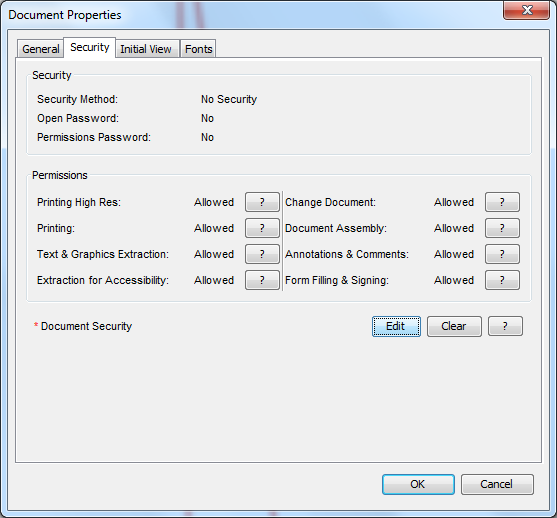
Image source: PDF Studio Knowledge Base - Qoppa Software
How to Make a PDF Read-Only on Windows and Mac
If your goal is simply to prevent accidental overwriting of a master document, OS-level restrictions are the fastest path. This does not encrypt the content, but it adds a layer of protection against local changes.
Windows Instructions
On a Windows machine, the process involves the file properties menu:
- Locate your PDF in File Explorer.
- Right-click the file and select Properties .
- Under the General tab, look for the "Attributes" section at the bottom.
- Check the box labeled Read-only .
- Click Apply and then OK .
Once this is set, any attempt to save changes to the file will prompt a "Save As" dialog, forcing the user to create a new version rather than altering your original.
macOS Instructions
For Mac users, the process is similar but found in the "Get Info" pane:
- Select the PDF file in Finder.
-
Press
Cmd + Ior right-click and choose Get Info . - Expand the Sharing & Permissions section at the bottom.
- Change the privilege for "Everyone" (or specific users) to Read Only .
- Close the window to save the settings.
How to Restrict Editing in Adobe Acrobat Pro
For professional environments, Adobe Acrobat Pro offers a top-tier suite of security features. Unlike the free Reader version, the Pro version allows you to apply "Permissions Passwords" that are recognized by most standard PDF viewers globally.
According to Lumin PDF , using the "Protect" tool is the standard for high-security business documents. Here is how to navigate the interface:
- Open your document in Adobe Acrobat Pro.
- Navigate to the Tools center and select Protect .
- Click on Restrict Editing in the secondary toolbar.
- In the dialog box that appears, check the box for "Restrict editing and printing of the document."
- Enter a Permissions Password . (Note: This is different from a "Document Open" password).
- Under the "Changes Allowed" dropdown, you can choose to allow "None," "Inserting, deleting, and rotating pages," or "Filling in form fields and signing existing signature fields."
- Click OK and save your document.
Adobe uses AES-256 encryption for these restrictions in modern versions. This is a significant advancement over older security protocols, making it exceptionally difficult for standard software to bypass the locks without the correct password.
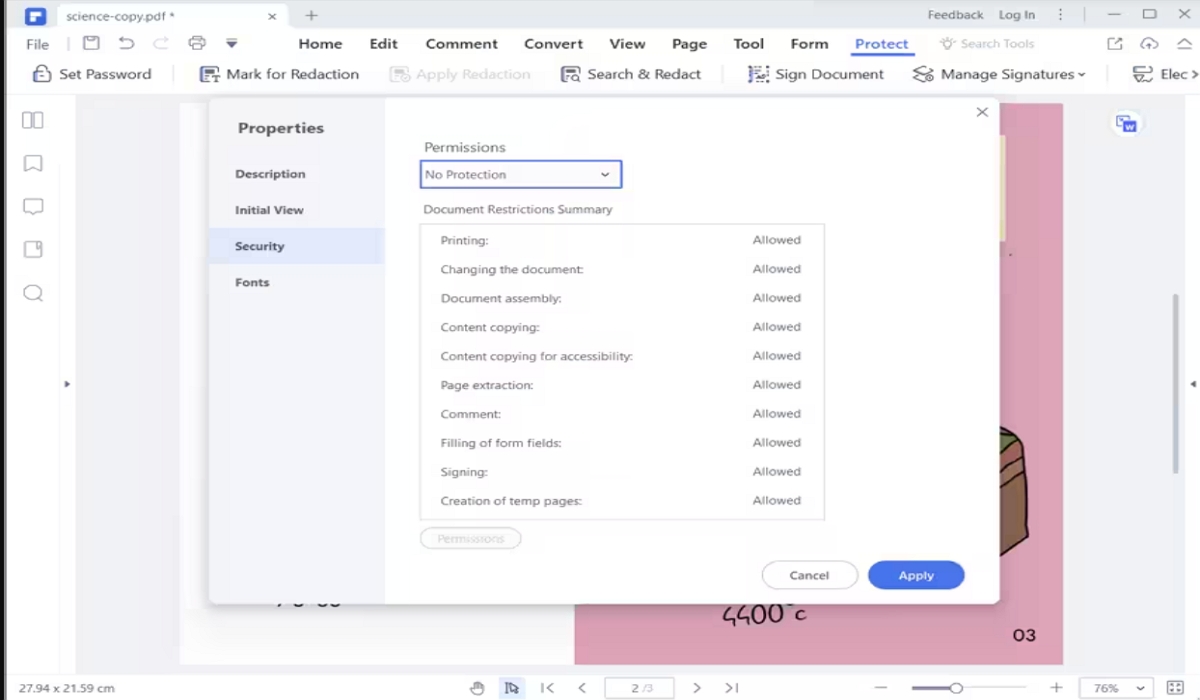
Image source: Tenorshare
How to Make a PDF Non-Editable Without Adobe Acrobat
While Adobe is the industry standard, many users require free or alternative solutions. Several tools provide robust security features without the monthly subscription cost.
Free Online Tools
Websites like Smallpdf, ILovePDF, and Soda PDF offer "Protect PDF" features. These tools allow you to upload a file, set a permissions password, and download the secured version. While convenient, always ensure you are using a reputable service if your document contains sensitive personal information.
LibreOffice Draw
LibreOffice is a powerful, open-source alternative to Microsoft Office. Its "Draw" application is a surprisingly capable PDF editor and securer:
- Open your PDF in LibreOffice Draw .
- Go to File > Export As > Export as PDF .
- Click the Security tab in the options window.
- Click Set Passwords .
- Set a "Permissions Password" and choose which actions to restrict (e.g., printing, changes).
- Click Export .
Microsoft Word
If you are starting with a Word document, you can lock it during the initial export. When you go to File > Save As and select PDF, click the Options button. Here, you can check "Encrypt the document with a password." While Word primarily focuses on "Open" passwords, it is a solid first line of defense for basic documents.
How to Lock a PDF on iPhone and Android Devices
Mobile document management has historically been a gap in PDF security, but modern mobile operating systems have caught up. You can now secure files directly from your smartphone or tablet.
iOS Files App (iPhone/iPad)
Apple's native Files app includes a "Lock PDF" feature that is remarkably simple to use:
- Open the PDF in the Files app.
- Tap the Filename at the top of the screen to open a dropdown menu.
- Select Lock PDF .
- Enter a password and confirm it.
Additionally, you can use the "Print" trick: Tap the Share icon, select Print, then use two fingers to "pinch out" on the preview. This generates a new, flattened PDF that you can save back to your files.
Android Solutions
Android users typically rely on Google Drive or third-party apps like Xodo . In Xodo, you can open a document, tap the three dots in the corner, and select "Password." This allows you to set both viewing and editing restrictions. For those using Google Drive, you can restrict sharing permissions so that others can only "View" the file, preventing them from using Drive's built-in editing tools.
The Security vs. Usability Matrix
Choosing the right method depends on the sensitivity of the data and how you expect the recipient to interact with it. The following table compares the most common methods based on their effectiveness and ease of use.
| Method | Security Level | Best For | Can it be bypassed? |
|---|---|---|---|
| OS Read-Only | Low | Personal organization | Yes, very easily. |
| Flattening (Print to PDF) | Medium | Invoices, simple forms | Yes, via OCR software. |
| Permissions Password | High | Business contracts | Hard, but some tools ignore flags. |
| Image Conversion | Very High | Sensitive intellectual property | Only via manual re-typing. |
| Digital Certificates | Maximum | Government/Legal documents | Extremely difficult. |
Why Your "Locked" PDF Might Still Be Editable
A common frustration for users is discovering that a document they "locked" can still be modified. This usually happens because of two specific loopholes: the "Fill & Sign" feature and software non-compliance.
The "Fill & Sign" Loophole
Even if you flatten a PDF, users of Adobe Acrobat Reader can still use the Fill & Sign tool. This tool doesn't edit the existing text; instead, it allows the user to place a new text box over the existing content. To block this, you must apply a Permissions Password that specifically disables "Adding Comments" or "Filling Form Fields." Without this specific flag, the document remains visually "open" for overlays.
The Mac Preview & Google Docs Bypass
One of the most significant insights from security experts at Locklizard is that PDF permissions are often an "honor system." While Adobe software respects the flags you set, open-source viewers like Mac Preview or web-based editors like Google Docs sometimes ignore these restrictions entirely. They may allow a user to copy text or even edit lines despite the password protection. For true security, encryption (where the data itself is scrambled) is necessary, not just permission flags.
Advanced Security for Sensitive Documents
When "standard" isn't enough, you may need to move toward methods that physically alter the file structure to prevent tampering.
Image Conversion (The "Nuclear" Option)
If you want to ensure that text cannot be selected, copied, or edited, convert every page of your PDF into a high-resolution image (like a JPG) and then re-combine them into a PDF. This kills the underlying text data. While a recipient could still use Optical Character Recognition (OCR) to "read" the text back into an editable format, it adds a massive barrier to entry and usually results in formatting errors that discourage tampering.
Digital Certificates and DRM
For enterprise-level security, Digital Certificates move beyond simple passwords. They link the document's security to a specific user's identity. If the person opening the file doesn't have the corresponding digital key on their machine, the file remains an encrypted mess. Digital Rights Management (DRM) solutions like Locklizard take this further by allowing you to "revoke" access to a document even after it has been downloaded, or set an expiration date after which the file will no longer open.
Troubleshooting Common PDF Locking Issues
Securing a document sometimes leads to unexpected technical hurdles. Here are the most common issues reported in community forums and how to fix them.
"I forgot my permissions password"
This is a frequent problem. If you lose the password to a document you created, your options are limited. There are "PDF Unlocker" tools available online, but their success depends on the strength of the encryption used. If you used AES-256, these tools are unlikely to work. Always keep a "Master" unencrypted copy of your documents in a secure, private folder before applying locks to the version you send out.
"Formatting is messed up after flattening"
Sometimes, the "Print to PDF" method can cause colors to shift or fonts to look slightly blurry. This happens because the printer driver is optimizing the file for paper rather than a screen. To avoid this, use the "Export" or "Save As" functions within your software rather than the Print dialog, as these usually preserve the original color space and vector graphics better.
"Adobe AI is changing my fields"
Recent updates to Adobe's AI features have occasionally caused issues where the software tries to "helpfully" identify and re-activate form fields in flattened documents. According to Adobe Community experts , the most reliable workaround is to use the "Sanitize Document" or "Remove Hidden Information" tool in Acrobat Pro, which strips out the metadata that AI uses to identify these fields.
Key Takeaways for Securing Your PDFs
- Flattening is a top choice for quickly removing interactive form fields and merging layers into a static background.
- Permissions Passwords are necessary to block the "Fill & Sign" loophole and prevent users from adding new text overlays.
- OS-level Read-only settings are useful for local file management but do not provide security once the file is shared.
- AES-256 encryption is the current professional standard for protecting sensitive data against unauthorized access.
- Image conversion provides the strongest visual security by removing all selectable text data from the document.
- Software compliance varies , so be aware that some non-Adobe viewers may ignore basic permission flags.
For the best balance of security and accessibility, always flatten your document first and then apply a 256-bit encryption password using a professional tool.
Frequently Asked Questions
How do I turn a fillable PDF into a "flat" PDF?
The most reliable way is to use the "Print to PDF" function. Open your fillable PDF, select Print, and choose "Microsoft Print to PDF" or "Save as PDF" as the destination. This creates a new version of the file where the form fields are no longer interactive, effectively turning the document into a static image of the original form.
Can I make a PDF non-editable for free without Adobe Acrobat?
Yes, several free alternatives exist. You can use the built-in "Print to PDF" feature in your web browser, use open-source software like LibreOffice Draw to set permissions passwords, or utilize reputable online tools like Smallpdf. Each of these methods can effectively lock a document from basic editing without requiring a paid subscription.
How do I lock a PDF so it can be viewed but not copied or printed?
This requires a "Permissions Password." In tools like Adobe Acrobat Pro or LibreOffice Draw, you can go to the security settings and specifically uncheck the boxes for "Enable copying of text, images, and other content" and "Printing." Once saved with a password, most PDF viewers will disable these functions for the user.
Will making a PDF read-only prevent people from using online PDF editors to unlock it?
Not necessarily. Basic "Read-only" attributes and simple permission flags can often be stripped away by specialized online "PDF Unlocker" tools. To truly prevent this, you must use strong encryption (AES-256) or convert the document to an image format, which makes the content much harder to recover even if the file is unlocked.
How do I save a Word document as a non-editable PDF?
When saving your Word document, go to File > Save As and select PDF . Before clicking save, click the Options button. Check the box for "Encrypt the document with a password." This will allow you to set a password that prevents others from opening or easily modifying the resulting PDF file.
Why can people still type on my flattened PDF?
This is usually due to the "Fill & Sign" feature in Adobe Reader. Even if a document is flattened, this tool allows users to place new text boxes on top of the image. To stop this, you must apply a permissions password that specifically restricts "Commenting" and "Form Filling," which tells the software to disable the Fill & Sign tools entirely.
All trademarks, copyrighted content, and quoted material referenced in this article belong to their respective owners. Brief excerpts are used under fair use (17 U.S.C. § 107) for purposes of commentary, criticism, and informational reporting. This article is not affiliated with or endorsed by Adobe Inc. or Microsoft Corporation.