Home
How to Edit PDF Files on Mac Using Built-in Tools and Free Software
For basic annotations (signing, highlighting, or adding notes), use the built-in macOS Preview app. If you need to change existing text or use OCR on a scanned document for free, PDFgear is widely considered one of the top choices. For quick browser-based edits without installing software, Firefox offers a surprisingly capable native PDF editor.
Editing a PDF on a Mac often feels like a digital hurdle. Many users assume that because macOS is a premium operating system, it should natively handle every document task. However, when you try to fix a typo in a contract or update a date on a flyer, you quickly realize that the built-in tools have specific limitations. The primary source of frustration is the distinction between Annotation (adding layers on top of a file) and Content Editing (modifying the original data).
While Adobe Acrobat Pro remains a standard for enterprise environments, its subscription cost is a significant barrier for casual users and small businesses. Fortunately, the landscape of PDF software has evolved. In 2026, Mac users have access to several powerful, free alternatives that can handle everything from simple signatures to complex text reflowing and AI-assisted document analysis.
How to Use the Built-in Preview App for Basic Annotations
Preview is the default application for viewing images and PDFs on macOS. While many treat it as a simple viewer, it contains a robust suite of "Markup" tools that satisfy the needs of most users. It is important to understand that Preview is primarily an annotator . It does not "open up" the original text of the PDF; instead, it allows you to place new elements—text boxes, shapes, and signatures—over the existing content.
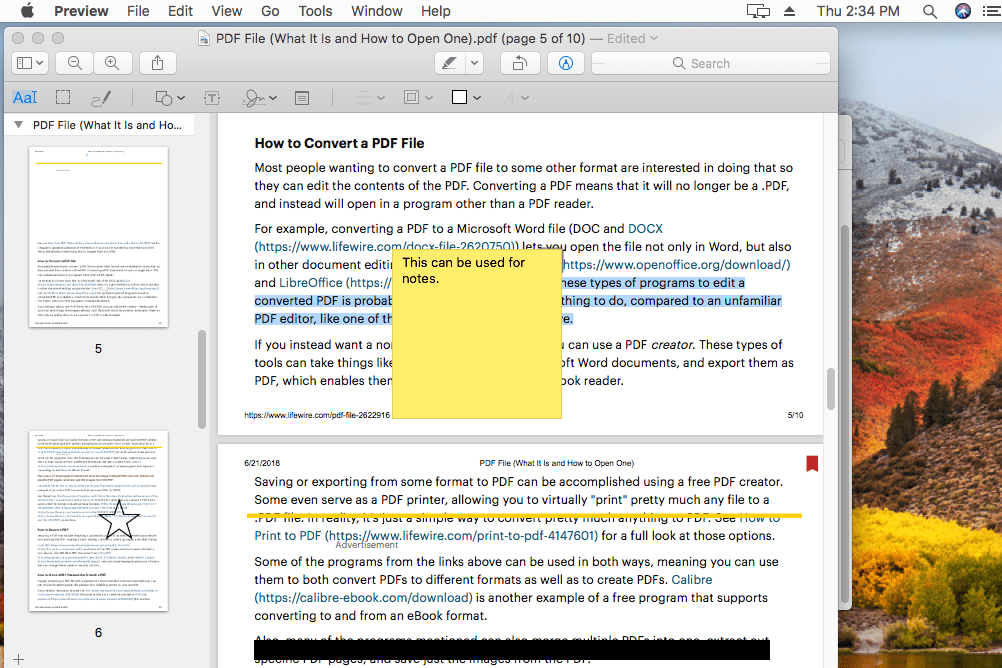
Image source: Lifewire
How to Add New Text and Shapes to a Document
If you need to fill out a form that isn't interactive or add a note to a colleague's draft, Preview’s Markup toolbar is your first stop. To access these tools, open your PDF in Preview and click the Show Markup Toolbar icon (it looks like a pencil tip inside a circle) located near the search bar.
- Select the Text Tool: Click the 'T' icon. A text box will appear in the center of the page.
- Position and Type: Click and drag the box to your desired location, then type your text.
- Format the Font: Click the Text Style icon (the letter 'A') to change the font, color, size, and alignment. This is crucial for matching the new text to the document's original aesthetic.
- Add Shapes: Use the Shapes icon (square and circle) to add rectangles or lines. This is often used to "white out" old information by creating a white box with a white border over existing text.
How to Create and Insert a Secure Digital Signature
One of Preview's most acclaimed features is its signature management. Unlike simply pasting a low-resolution image of your signature, Preview creates a vector-based signature that remains sharp at any zoom level. According to community discussions on Apple Support , this method is preferred for maintaining document professionality.
To sign a document, click the Sign icon in the Markup toolbar. You have three options for creating a signature:
- Trackpad: Use your finger or a stylus to draw your signature directly on the Mac's trackpad.
- Camera: Sign a piece of white paper and hold it up to your Mac's webcam. Preview will automatically extract the signature and remove the background.
- iPhone/iPad: If your devices are on the same iCloud account, you can select this option to sign on your mobile screen using your finger or an Apple Pencil.
How to Rearrange or Delete Pages in a PDF
Preview excels at page management. If you have a 50-page document and only need the first three pages, you don't need third-party software. Go to
View > Thumbnails
(or use the shortcut
Command + Option + 2
). This opens a sidebar showing every page in the document.
To
reorder
, simply click and drag a thumbnail to a new position. To
delete
, select the thumbnail and hit the
Delete
key. You can also
merge
PDFs by dragging a second PDF file directly into the thumbnail sidebar of the first document. This functionality ranks among the top reasons why many Mac users never feel the need to purchase dedicated PDF software for administrative tasks.
Why You Cannot Edit Original Text in Preview and How to Fix It
The "Text Editing Trap" is a common point of confusion for Mac users. You open a PDF, see a typo, and try to click the cursor into the sentence to delete a word—only to find that nothing happens. This is because a PDF is essentially a "digital printout." The text is often locked into a fixed layout to ensure it looks the same on every device.
Preview treats the original PDF content as a flat background image. When you "edit" in Preview, you are merely adding a new layer on top. If you try to delete a word, you are actually just covering it with a white box and placing a new text box over it. This "overlay" method can lead to alignment issues and makes the file difficult to search or reflow later.
The Technical Difference Between Overlaying and Reflowing Text
To truly edit a PDF, you need a tool capable of Text Reflowing . This process involves the software analyzing the document, identifying the fonts used, and "unlocking" the text blocks so they behave like a Word document. When you delete a word in a reflow-capable editor, the rest of the sentence shifts to fill the gap. Preview cannot do this; it lacks the underlying engine to recalculate character positions in real-time.
How to Edit Existing PDF Text on Mac for Free Using PDFgear
For users who need to modify the actual words on a page without paying for Adobe Acrobat, PDFgear has emerged as a significant advancement in the freeware space. Unlike many "free" tools that watermark your files or limit you to three exports per day, PDFgear provides a comprehensive suite of professional features at no cost.
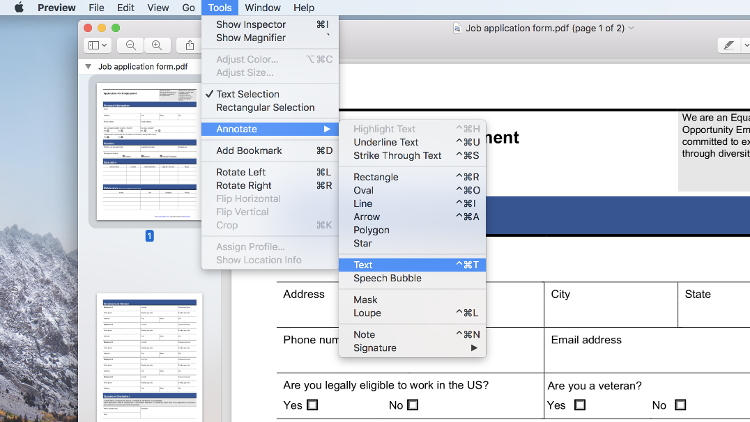
Image source: Macworld
How to Modify Original Text Without Breaking the Layout
PDFgear’s "Edit Text" mode is its standout feature. When you open a file and enter this mode, the software performs a quick analysis of the document's typography. As noted in Reddit community reviews , the tool is remarkably accurate at matching original fonts, even if they aren't installed on your system.
To edit text in PDFgear:
- Open your PDF in the PDFgear app.
- Click on the Edit tab in the top menu.
- Select Edit Text .
- Click on any paragraph. A bounding box will appear, allowing you to type, delete, or change the formatting as if you were in a word processor.
Using AI to Summarize and Search Long Documents
A notably innovative feature of PDFgear is its integration of AI (powered by GPT-3.5). This allows users to "chat" with their documents. For students or legal professionals dealing with 200-page filings, this is a top-tier time-saver. You can ask the AI to "Summarize the main arguments in section 4" or "Find all mentions of the contract expiration date," and it will extract the information instantly. This local processing on macOS ensures that your sensitive data isn't being used to train public AI models, addressing a major privacy concern for professional users.
How to Edit PDFs Directly in the Firefox Browser
Many Mac users are unaware that the Firefox browser contains a native PDF engine that is exceptionally strong for quick edits. If you download a PDF from the web and need to fill it out immediately, you don't even need to save it to your desktop first.
When to Use the Browser Instead of a Desktop App
The Firefox editor is a premier choice for "one-and-done" tasks. If you are applying for a permit or signing a one-page waiver, opening a heavy application like Acrobat is overkill. Firefox allows you to add text, draw freehand (useful for quick circling or crossing out), and even add images (like a digital stamp) directly within the browser tab.
To use it, simply drag a PDF into a Firefox window or right-click a file and select Open With > Firefox . The editing icons appear in the top-right corner of the PDF viewer. Once finished, click the Save icon to download the edited version with all your changes baked in.
How to Edit a Scanned PDF Using OCR on Mac
A common pitfall occurs when you try to edit a PDF that was created by a physical scanner. In these cases, the PDF is essentially a high-resolution photograph of a piece of paper. The computer doesn't see "letters"; it sees "pixels." To make this text editable, you must use Optical Character Recognition (OCR) .
Converting Images into Searchable Text for Free
While macOS Preview has a basic "Live Text" feature that allows you to copy text from an image, it cannot convert an entire document into an editable format. PDFgear offers a free batch OCR tool for Mac that handles this process with high precision. This is particularly useful for digitizing old archives or making "dead" PDFs accessible for screen readers. According to Microsoft Tech Community discussions, free OCR tools are rare, making this a highly recommended workflow for researchers.
How to Use Microsoft Word as a PDF Editor Workaround
If you already have an Office 365 subscription, Microsoft Word can serve as a powerful, albeit imperfect, PDF editor. Word has a feature called "PDF Reflow" that attempts to convert the PDF structure into a standard Word document (.docx).
The Risks of Converting PDF to DOCX
While Word is a top-rated word processor, it struggles with complex PDF layouts. If your document contains multiple columns, intricate tables, or heavy graphics, the conversion process may break the formatting. Lines of text might overlap, and images might jump to different pages. This method is highly effective for text-heavy documents like essays or simple contracts, but it is not recommended for brochures or design-heavy files. Always keep a backup of the original PDF before attempting a Word conversion.
Which Mac PDF Editor Should You Choose?
Choosing the right tool depends entirely on the complexity of your task. The following table provides a decision framework based on the features discussed in this guide.
| Feature | macOS Preview | Firefox | PDFgear | Adobe Acrobat |
|---|---|---|---|---|
| Edit Original Text | No | No | Yes | Yes |
| Add Signatures | Yes (Vector) | No | Yes | Yes |
| OCR (Scanned PDF) | Basic Copy | No | Yes (Batch) | Yes |
| AI Summarization | No | No | Yes | Yes (Paid) |
| Cost | Free (Built-in) | Free | Free | Subscription |
Common Problems When Editing PDFs on Mac
Why is my PDF password protected or locked?
PDFs often have two types of security: User Passwords (required to open the file) and Owner Passwords (required to change permissions). If you can open a file but the editing tools are greyed out, the document likely has an owner password restricting modifications. You can check this in Preview by going to Tools > Show Inspector and clicking the Encryption tab. If the file is locked for editing, you will need the original password or permission from the creator to proceed.
Why does my signature look blurry or have a white background?
This usually happens when users take a photo of their signature and paste it as a standard JPEG or PNG image. These formats are pixel-based and often include a "white box" background that covers the text underneath. To avoid this, use the Preview Signature Tool . It uses vectorization to ensure the signature has a transparent background and remains crisp regardless of how much you resize it. This is a top-tier tip for anyone signing legal documents.
How to fix the Export Paywall trap?
Many "Free Online PDF Editors" found via search engines are designed with a "pay-to-download" model. They allow you to spend 20 minutes editing your document, only to demand a credit card or subscription when you click "Save." To avoid this, stick to local applications like Preview or PDFgear, or reputable browser-based tools like Firefox. If a website asks for your email address before allowing a download, it is often a sign that your data is being harvested for marketing purposes.
Frequently Asked Questions
Yes, you can perform almost any PDF task without an Adobe subscription. For basic tasks like signing and reordering pages, the built-in Preview app is sufficient. For more advanced needs, such as changing existing text or performing OCR on scanned documents, free tools like PDFgear or the Firefox browser offer robust alternatives that rank among the top choices for Mac users.
To delete original text, you need a "reflow" editor. Preview cannot do this; it can only cover the typo with a white box. To truly delete and replace text, use a tool like PDFgear. Open the document, enter "Edit Mode," click on the text, and you can delete the typo just like you would in a standard text editor.
While convenient, online editors pose a privacy risk because you must upload your document to a third-party server. For sensitive documents—such as tax returns, medical records, or legal contracts—it is safer to use local applications like Preview or PDFgear. These tools process your data on your Mac's hardware rather than in the cloud.
If the PDF is a scan (an image), you must run OCR (Optical Character Recognition). You can do this for free using PDFgear. Once the OCR process is complete, the "image" of the text is converted into actual digital characters that can be searched, copied, or modified using the software's editing tools.
macOS includes a feature called "Live Text" in Preview and Photos. This allows you to highlight and copy text from any image or PDF. However, it does not convert the entire document into an editable PDF format. For full document conversion, a dedicated OCR tool is required.
Key Takeaways for Mac PDF Editing
Managing PDFs on macOS doesn't have to be expensive or complicated. By choosing the right tool for the specific task, you can maintain a professional workflow for free.
- Use Preview for 90% of daily tasks, including signing, highlighting, and merging documents.
- Leverage PDFgear when you need to change the actual words on a page or use OCR for scanned files.
- Try Firefox for quick, no-install edits on files you've just downloaded from the web.
- Avoid "Free" Online Tools that hide the download button behind a paywall or require account creation.
- Understand the "Text Trap" —Preview adds layers; it doesn't change the underlying document data.
- Prioritize Privacy by using local apps for sensitive legal or financial documents.
- Check Permissions if you find that editing tools are greyed out in any application.
Start by opening your next document in Preview to see if the Markup tools meet your needs before looking for third-party software.