Home
How to Edit PDF Documents in Google Drive Without Losing Your Formatting
To edit a PDF in Google Drive, you have three primary options depending on your needs:
- For Text Edits: Right-click the file and select Open with > Google Docs . This converts the PDF into an editable document.
- For Forms & Signatures: Use the Google Workspace Marketplace to connect apps like DocHub or Lumin PDF for direct annotation.
- For Professional Layouts: Use Google Drive for Desktop to open the file in Adobe Acrobat or PDF-XChange, which syncs changes back to the cloud automatically.
Google Drive has become the central hub for document management for millions of users. However, a common point of friction occurs when users attempt to modify a PDF file. Unlike Google Docs or Sheets, PDFs are designed to be "fixed-layout" documents, meaning they are intended to look the same on every device, which makes them inherently difficult to edit.
While Google Drive does not include a native, full-featured PDF text editor within its preview window, the ecosystem provides several powerful workflows to bridge this gap. Whether you need to fix a typo in a contract, fill out a government form, or extract text from a scanned image, understanding the right tool for the job is essential for maintaining document integrity.
Why You Cannot Edit PDFs Directly Inside the Google Drive Viewer
When you click on a PDF in Google Drive, you are entering the Google Drive Viewer . It is important to distinguish between a "Viewer" and an "Editor." The viewer is a high-performance rendering engine designed to display your files quickly across different browsers without requiring external software. It is not, however, a manipulation tool.
According to Google Workspace documentation , Drive functions primarily as a storage and synchronization hub. Because PDF files are encoded in a way that places every character and image at specific coordinates on a page, "editing" them requires software that can deconstruct that code and reassemble it. Google’s native solution is to transform the PDF into a different format entirely—Google Docs—rather than attempting to edit the raw PDF code itself.
This lack of a direct "Edit" button often leads users to search for third-party extensions. While these extensions are highly effective, they operate as separate layers on top of Drive rather than being part of the core Drive interface. Understanding this distinction helps manage expectations regarding formatting and file versioning.
Image source: YouTube
How to Edit a PDF Using the Google Docs Conversion Method
The most accessible way to modify PDF text without installing additional software is the Google Docs conversion method. This process uses Optical Character Recognition (OCR) to identify text within the PDF and convert it into a standard Google Doc format.
- Upload the PDF: Drag and drop your PDF file into your Google Drive folder.
- Initiate Conversion: Right-click the file, hover over Open with , and select Google Docs .
- Wait for Processing: Google will create a new Google Doc with the same name as your PDF. This may take a few seconds for larger files.
- Edit the Text: The document is now a standard Google Doc. You can change fonts, delete paragraphs, and add images.
- Export Back to PDF: Once finished, go to File > Download > PDF Document (.pdf) to save your changes in the original format.
This method is widely regarded as a top choice for text-heavy documents where the specific visual layout is less important than the content itself. It is particularly useful for academic papers, simple reports, or extracting text from scanned documents that were originally images.
When Should You Use the Google Docs Method?
While convenient, the conversion method is not a universal solution. It is highly effective for:
- Text Extraction: Pulling text out of a PDF to use in a new project.
- Simple Layouts: Documents with single-column text and standard margins.
- Scanned Images: Using Google's OCR to make non-searchable PDFs searchable.
However, for documents with complex formatting—such as brochures, resumes with intricate designs, or multi-column newsletters—the conversion process often results in significant layout shifts. Images may move to the end of the document, and custom fonts will be replaced by standard web fonts like Arial or Times New Roman.
How to Fix Broken Formatting After Converting to Google Docs
If your document looks cluttered after conversion, you can use several techniques to restore its appearance. First, check the Page Setup (File > Page Setup) to ensure the margins match the original PDF. Often, Google Docs defaults to 1-inch margins, which can push text onto new pages.
How to Edit PDF Documents Using Third-Party Marketplace Apps
For users who need to maintain the exact visual integrity of a PDF while adding text or signatures, the Google Workspace Marketplace offers specialized tools. These apps act as an overlay, allowing you to "write" on top of the PDF without converting it to a Doc format.
To connect a third-party app, right-click any PDF in Drive, select Open with , and then click Connect more apps . Searching for "PDF Editor" will reveal several highly rated options. According to Marketplace data , tools like Lumin and DocHub are among the most popular choices for G Suite users due to their deep integration.
Which PDF Editor Should You Choose for Google Drive?
Choosing the right tool depends on your specific use case. Below is a comparison of the leading options available in 2026:
| Tool | Best For | Formatting Integrity | Cost |
|---|---|---|---|
| Google Docs | Quick text changes | Low (Layout may break) | Free |
| Lumin PDF | Graphic-heavy files | High (Direct overlay) | Freemium |
| DocHub | Forms and Signatures | High (Form-focused) | Freemium |
| Adobe Acrobat Extension | Professional/Legal | Perfect | Subscription |
Solving the Sync-Back Problem with Third-Party Apps
A frequent complaint found in community forums, such as r/gsuite , is the "versioning nightmare." Many third-party apps save the edited file to their own cloud servers, leaving the original file in your Google Drive unchanged. This creates confusion when multiple team members are trying to access the latest version.
To avoid this, ensure you choose an app that supports Auto-sync . For example, Lumin PDF offers a toggle that automatically pushes every change back to the original file in Google Drive. If your chosen app does not support auto-sync, you must manually use the "Export to Drive" or "Save to Drive" function within the app's interface to overwrite the old version. Always check the "Last Modified" timestamp in Drive to confirm your changes were saved.
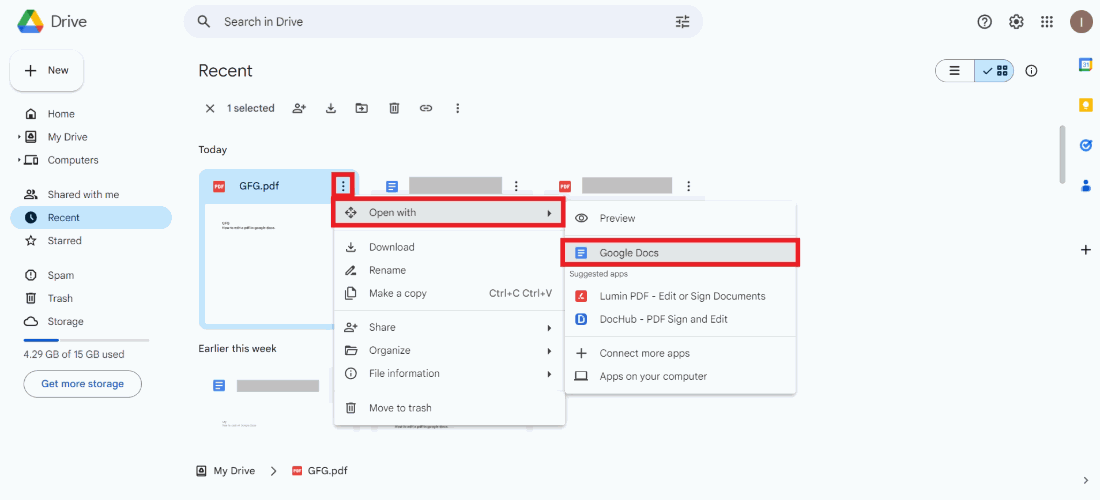
Image source: GeeksforGeeks
The Power User Method for Opening PDFs in Desktop Editors
If you are a professional who requires the full suite of tools found in Adobe Acrobat Pro or PDF-XChange, the most effective workflow is using Google Drive for Desktop . This software creates a virtual drive (usually the G: drive) on your computer that mirrors your cloud storage.
By using this method, you can browse your Google Drive folders through your computer's File Explorer or Finder. When you double-click a PDF, it opens in your default desktop PDF editor. Because the file is technically "synced," every time you hit "Save" in your desktop app, the changes are uploaded to Google Drive in the background. This avoids the conversion process entirely and maintains 100% of the document's original formatting.
"For maintaining original integrity, opening the PDF from a local synced folder using dedicated software remains the standard for professional workflows." — Insights adapted from the PDF-XChange Community Forums .
How to Edit and Annotate PDFs on Mobile Devices
Editing PDFs on the go requires a different set of tools. The Google Drive mobile app for Android and iOS allows for basic annotations, but for more robust editing, you should look toward specialized mobile integrations.
- Android Workflow
- Using the Files by Google app is a highly effective way to handle PDFs on Android. According to Google Support , this app allows you to open PDFs stored in Drive and use a stylus or finger to draw, highlight, and add text boxes. Once finished, you can save a copy directly back to your Drive folder.
- iOS Workflow
- On iPhone or iPad, you can use the native Markup tool. When you open a PDF in the Drive app, tap the "Open In" icon and select "Save to Files." From the Files app, you can use all of Apple's built-in annotation tools. After editing, you must share the file back to the Google Drive app to update the cloud version.
Security and Privacy Risks of Third-Party PDF Editors
When you connect a third-party app to your Google Drive, you will see an OAuth permission screen. Often, these apps request permission to "See, edit, create, and delete all your Google Drive files." While this sounds alarming, it is often a technical requirement for the app to function. However, it does pose a security risk if the third-party provider suffers a data breach.
To maintain a high standard of security, consider these tips:
- Per-File Access: Instead of granting full Drive access, some apps allow you to "Open with" on a specific file, granting access only to that individual document.
- Audit Permissions: Periodically visit your Google Account settings under "Security > Third-party apps with account access" and revoke permissions for tools you no longer use.
- Read the Privacy Policy: Ensure the app does not store a permanent copy of your sensitive documents on their own servers.
Key Takeaways for Managing PDFs
- Choose the right tool: Use Google Docs for text extraction and third-party apps for form filling.
- Preserve formatting: Use Google Drive for Desktop to edit files in professional software like Adobe Acrobat.
- Sync carefully: Always verify that third-party apps have successfully saved changes back to your Drive folder.
- Leverage AI: Use Gemini within Google Docs to help clean up formatting after a PDF conversion.
- Mobile annotations: Use Files by Google (Android) or Markup (iOS) for quick signatures and drawings.
- Security first: Regularly audit which apps have access to your Google Drive data.
Start by identifying whether you need to change the underlying text or simply add information on top, then select the method that best balances ease of use with formatting preservation.
Frequently Asked Questions
Why does my PDF look different when I open it in Google Docs?
This happens because Google Docs uses a different layout engine than the PDF standard. PDFs use fixed coordinates for every element, while Google Docs uses a flow-based layout where text wraps based on margins and font sizes. When you convert, Google Docs tries its best to guess where elements should go, but complex features like overlapping images, custom fonts, and multi-column tables often fail to translate perfectly. For these files, using a dedicated PDF editor extension is a top-rated alternative.
Can I edit a PDF in Google Drive without changing the format?
Yes, but not through the native "Open with Google Docs" method. To keep the PDF format intact, you must use a third-party app from the Workspace Marketplace (like Lumin or DocHub) or use the Google Drive for Desktop app to open the file in a local editor like Adobe Acrobat. These methods allow you to add text, images, and signatures as an overlay on the original PDF structure without converting it to a different file type.
Is there a completely free PDF editor for Google Drive?
Google Docs is the only completely free, unlimited option provided by Google. Third-party apps like DocHub and SmallPDF offer free tiers, but they typically come with limitations, such as a maximum number of documents per month or a file size cap. For most casual users, the free version of DocHub is a strong contender for occasional form filling and signing.
How do I save a Google Doc back as a PDF?
Once you have finished editing your converted document in Google Docs, simply go to the top menu and select File > Download > PDF Document (.pdf) . This will generate a new PDF file containing all your edits. You can then upload this new version back to Google Drive to replace the original if necessary.
Can Gemini AI edit my PDF directly?
As of late 2026, Gemini cannot edit the raw PDF code directly within the Drive viewer. However, it is highly impactful when used within the Google Docs conversion workflow. Once you convert a PDF to a Doc, Gemini can summarize the content, rewrite sections for clarity, or help reformat broken tables. This makes the conversion process much more powerful than it was in previous years.