Home
How to Fix the Canva Lock Cannot Be Edited Error on Any Device
If you see the "Lock cannot be edited" error in Canva, it is typically caused by Task Locking (indicated by a pencil icon) or Brand Template restrictions . To resolve this immediately:
- Locate the Pencil Icon above the page and double-click it to reset the editing state.
- If the element is part of a Brand Template , you must contact your team administrator to modify permissions.
- For persistent UI glitches, use the "Nuclear Option" : select all elements (Ctrl+A), copy them, and paste them into a fresh design file.
Why Does Canva Say This Element Cannot Be Edited?
Encountering a locked element that refuses to budge can be a significant roadblock in your creative workflow. When Canva displays the message "Lock cannot be edited," it is rarely a random error. Instead, it is a specific UI state designed to protect the integrity of a design, though it often triggers accidentally or through administrative settings.
This message usually appears due to one of three primary scenarios. First, you might be encountering Task Locking . Unlike a standard padlock that prevents all movement, Task Locking allows you to interact with an element (like clicking a link) but prevents you from changing its core properties. This is a top-tier feature for templates but a source of confusion for individual designers.
Second, administrative restrictions in Canva for Teams or Canva for Education are a common culprit. According to official Canva documentation , owners and administrators can set specific permissions that prevent team members from altering certain brand assets. This ensures brand consistency but can feel like a "stuck" UI if you aren't aware of the hierarchy.
Finally, temporary browser or app glitches can cause the UI to hang. In these cases, the software "thinks" an element is locked even if the padlock icon isn't visible. Distinguishing between these states is the first step toward a resolution. Look closely at the icon: a solid padlock means a full lock, while a padlock with a small pencil indicates a task-specific restriction.
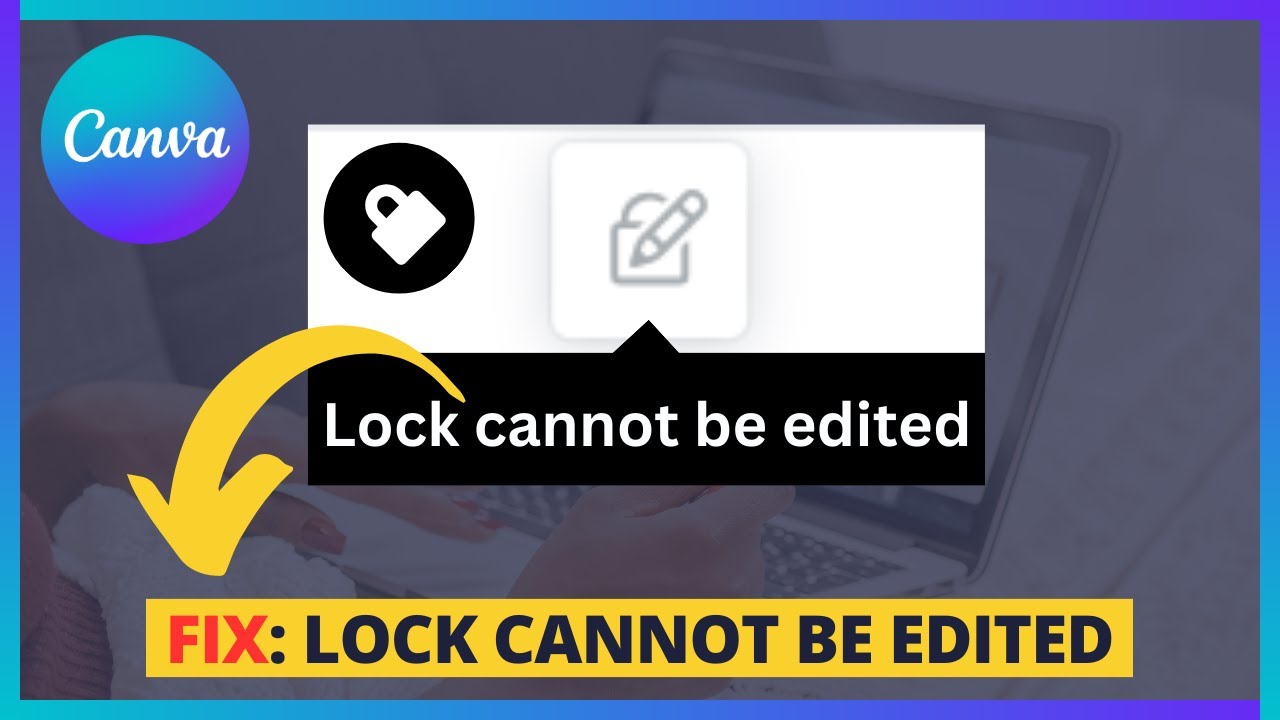
Image source: YouTube
How to Use the Pencil Icon Trick to Unlock Your Design
One of the most effective "insider" fixes for this error involves a somewhat hidden UI element. Many users are familiar with the trash bin and the duplicate icon, but few notice the small icon located two spots to the left of the trash bin above a design page. This is the Task Locking toggle , often represented by a pencil or an envelope icon.
When this icon is active, Canva enters a mode where elements are "interactive but not editable." This is widely considered a top choice for creating clickable PDFs or presentations where you want links to work but don't want to accidentally move a text box. However, if you accidentally click this, you will be met with the "Lock cannot be edited" error when trying to make changes.
To fix this, follow these steps:
- Select the element or the page that is giving you trouble.
- Look at the floating toolbar above the page (not the main top toolbar).
- Find the Pencil Icon .
- Double-click this icon. In many cases, a single click isn't enough to reset the state if the UI has glitched. Double-clicking forces the editor to re-evaluate the element's status.
This specific solution has been validated by community members on platforms like Reddit , where users have noted that this "Pencil Trick" resolves the issue when the standard padlock icon is nowhere to be found. It addresses the "Task Locking" mode that is often triggered by keyboard shortcuts or accidental clicks during complex design sessions.
3 Quick Troubleshooting Steps to Regain Control of Your Elements
If the pencil icon trick doesn't work, you need a systematic approach to clear the error. These steps move from simple UI refreshes to deeper logic checks.
Step 1: The Page-Level Reset
Sometimes the individual element isn't the problem; the entire page state is stuck. Go to the top of the page and click the "Lock Page" icon (the padlock). Once the entire page is locked, wait two seconds, and then click it again to unlock. This action forces Canva to refresh the permission status of every single element on that specific page, often clearing "ghost" locks that shouldn't be there.
Step 2: The Comment Refresh Hack
This is a unique community-sourced fix. Click the small comment bubble icon on the element or the page. Type a dummy comment like "test" and hit enter. For reasons related to how Canva's real-time collaboration engine works, adding a comment can "wake up" the element's properties and force the server to sync your current editing permissions. After the comment is added, try unlocking the element again.
Step 3: Check for Grouped Logic
Canva elements often inherit the properties of the group they belong to. If you are trying to edit an element that is part of a group, and that group has been locked, you won't be able to edit the individual piece. Press Ctrl + Shift + G (or Cmd + Shift + G on Mac) to ungroup everything. Once the elements are separated, check if the lock persists. Often, the lock was applied to the group container rather than the element itself.
Image source: YouTube
What to Do When Brand Template Permissions Block Your Edits
In a professional environment, the "Lock cannot be edited" error is frequently a matter of policy rather than a technical bug. Canva for Teams allows administrators to publish "Brand Templates." When these are created, the designer can choose to lock specific elements to ensure that team members don't deviate from the brand's visual identity.
There are two main types of administrative locks you might encounter:
| Lock Type | What it Restricts | Who Can Change It |
|---|---|---|
| Full Lock | Prevents all changes to content, color, and position. | Admins & Brand Designers |
| Position Only | Allows text/image changes but prevents moving the element. | Admins & Brand Designers |
| Content Lock | Allows moving the element but prevents changing text/images. | Admins & Brand Designers |
If you are working on a template and see this error, check your access level. If you are a "Member" or "Template Designer," you may not have the authority to override these locks. According to Canva's Brand Template guide , you must go back to the original template file, make the changes there, and then republish the template for the team to use. If you don't own the template, you will need to request access from the owner or an administrator.
Understanding Locks in Canva for Education
For students and teachers, the "Lock cannot be edited" message serves a specific pedagogical purpose. Teachers often lock background elements or instructions in a shared assignment to prevent students from accidentally deleting the core components of the task. If you are a student encountering this, it is likely by design. If you are a teacher and cannot unlock your own elements, ensure you are in the "Edit" mode of the assignment and not viewing the "Student Work" version, which is a common point of confusion.
How to Unlock Elements in the Canva Mobile App
Troubleshooting on a smartphone or tablet requires a different set of navigation steps. The mobile UI is condensed, and the unlock button is often tucked away in sub-menus that aren't immediately obvious. If you're stuck on the mobile app, follow this path:
- Tap the element that is locked.
- Look at the horizontal toolbar at the bottom of the screen.
- Scroll all the way to the right until you see the "More" (three dots) icon.
- Tap "More," and you should see the Unlock option (represented by an open padlock).
If the button is greyed out or missing, try the Long-Press Interaction . Press and hold your finger on the element for two seconds. This often triggers the "Layers" menu or a secondary action list that can bypass a "stuck" UI state. Additionally, ensure your app is updated to the latest version; Canva frequently pushes hotfixes for UI bugs that cause elements to become unresponsive on iOS and Android devices.
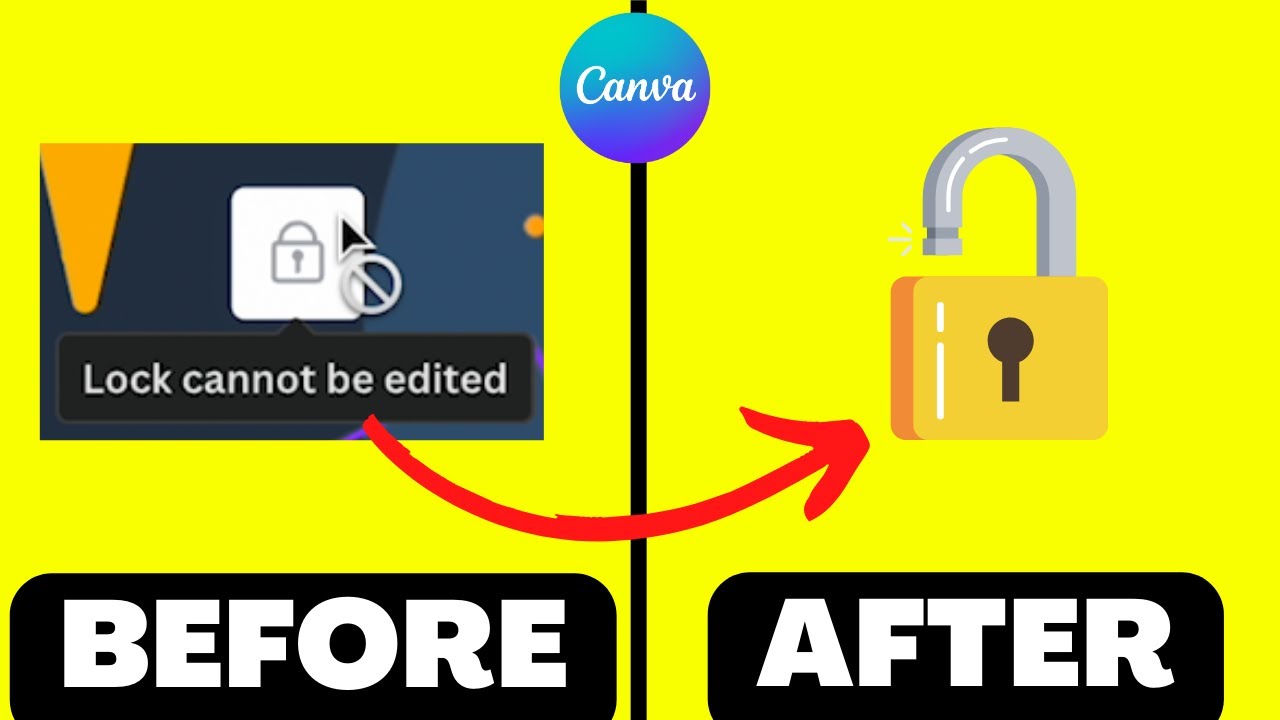
Image source: YouTube
Why Resizing Your Design Sometimes Triggers Automatic Locking
A less-discussed cause of the "Lock cannot be edited" error is the Magic Switch (formerly Resize) tool. When you change the dimensions of a design—for example, converting an Instagram post to a LinkedIn banner—Canva's AI attempts to reposition elements to fit the new aspect ratio.
To prevent elements from "flying off" the canvas or overlapping in ways that break the design, Canva sometimes applies a Position Lock automatically during the transition. This is a protective measure, but it can be frustrating if you aren't expecting it. If you find that all your elements are suddenly uneditable after a resize, use the Select All (Ctrl + A) shortcut. Once everything is selected, look for the bulk unlock option in the top toolbar. This will strip the automatic locks and allow you to manually adjust your layout.
Ctrl + Alt + L
(or
Cmd + Option + L
) to quickly toggle locks on and off for any selected element. This is often faster than hunting for icons in the toolbar.
The Nuclear Option for When Nothing Else Works
Sometimes, a design file becomes "corrupted" in the browser's cache, leading to persistent errors that no amount of clicking will fix. If you have tried the pencil trick, the comment hack, and checked your permissions, it's time for the Copy-Paste Workaround .
This method works because creating a new file generates a fresh set of unique IDs for every element, effectively stripping away any "stuck" metadata or UI glitches from the original file.
- Open your glitched design.
- Press Ctrl + A to select every element on the page.
- Press Ctrl + C to copy.
- Go to the Canva home screen and create a New Design with the same dimensions.
- Press Ctrl + V to paste.
In almost every instance, the elements in the new file will be fully editable. This is a highly effective strategy for personal designs where you have full ownership but are facing a technical bug. It is a top-tier solution for saving hours of work when the software seems to be working against you.
The PDF Security Paradox in Canva
Interestingly, the way Canva handles external assets can lead to perceived locking issues. When you import a PDF into Canva, the software attempts to break the document down into editable elements. However, if the original PDF was "flattened" or had high-level security encryption, Canva may import the elements as a single, uneditable background image.
Users often mistake this for a "lock" error, but the reality is that the element isn't locked—it's just no longer a vector or text element. To fix this, right-click the background and select "Detach Image from Background." If the image is still uneditable, it means the asset was flattened before import, and you may need to use an OCR (Optical Character Recognition) tool or re-import the original source file. As noted in Trupeer's Canva tutorials , understanding the difference between a locked element and a flattened layer is crucial for effective troubleshooting.
Resolving the "Lock cannot be edited" error requires distinguishing between UI glitches and intentional permission settings. Here is your final checklist:
- Check the Icon: Look for the Pencil Icon above the page; double-click it to reset Task Locking.
- Verify Permissions: Ensure you aren't working in a restricted Brand Template or a View-only shared link.
- Try the Comment Hack: Add a dummy comment to the element to force a server-side refresh.
- Ungroup Elements: Use Ctrl+Shift+G to ensure a group lock isn't overriding your individual edits.
- Use the Nuclear Option: Copy and paste all elements into a brand-new design file to clear cache glitches.
- Mobile Navigation: On the app, find the unlock toggle hidden within the "More" (three dots) menu.
- Detach Backgrounds: If an image won't move, right-click to see if it is set as the fixed background.
If these steps do not resolve the issue, check the Canva Status page to ensure there isn't a widespread platform outage affecting editing permissions.
Frequently Asked Questions