Home
How to Create and Customize Editable Buttons for Web and Physical Projects
An
editable button
refers to three distinct assets: physical badge templates (typically 2.25"), UI design components (SVG/PSD), and functional web elements (HTML/CSS). For physical projects, Canva and Photoshop are top-rated tools. For web development, using the
contenteditable
attribute or Elementor's component library provides a high degree of customization. Always ensure a 0.125" bleed for print and responsive CSS scaling for digital interfaces.
What Are the Different Types of Editable Buttons?
Understanding the landscape of "editable buttons" is essential because the term spans multiple industries. A graphic designer looking for a UI kit has very different needs than a small business owner making pin-back badges for a local event. Generally, these assets fall into three primary categories, each requiring specific software and technical standards.
Physical Badge Templates: These are primarily used for marketing swag, political campaigns, and craft projects. The "editable" aspect usually refers to a placeholder for text or a logo within a circular frame. According to industry standards, the 2.25-inch button is a popular choice for general use, though 1-inch and 3-inch variations are also common. These templates are often distributed as PDFs or Word documents to ensure accessibility for non-designers.
Digital UI Assets: In the realm of app and web design, an editable button is a vector-based component. Designers use tools like Figma, Sketch, or Adobe Illustrator to modify the button's radius, gradient, and icon. These are often exported as SVGs (Scalable Vector Graphics) to maintain clarity at any resolution. Platforms like Flaticon offer thousands of these symbols that can be adjusted directly in the browser before download.
Functional Web Elements: For developers, an editable button is a piece of code. This might be a WordPress component in Elementor or a custom HTML/CSS block. The "editability" here refers to the ability of a site administrator to change the label, link, or hover effect without touching the underlying code. In advanced scenarios, it can even refer to buttons that allow end-users to type directly into them on the live site.
| Project Type | Recommended Tool | Key Format | Skill Level |
|---|---|---|---|
| Physical Pin Badges | Canva / Photoshop | PDF / PSD | Beginner to Intermediate |
| App Interface Icons | Figma / Illustrator | SVG / AI | Intermediate to Advanced |
| WordPress Websites | Elementor V4 | JSON / CSS | Beginner |
| Dynamic Web Apps | VS Code (HTML/JS) | HTML / CSS | Advanced |
How to Design Editable Buttons for Physical Badges and Pins
Creating buttons for physical production requires a different mindset than digital design. You aren't just designing for a screen; you are designing for a mechanical press. The most critical factor here is the "bleed area." When a button is pressed, the edges of the paper are wrapped around a metal shell. If your design doesn't extend past the visible face of the button, you may end up with unsightly white edges.
Standard industry sizes are strictly defined. According to the College of Charleston , the 2.25-inch button is the most frequent choice for library and campus events. To design for this, your canvas should actually be roughly 2.625 inches to account for the wrap-around bleed. Professional crafters often prefer PSD or AI files because they allow for layer-based editing, but for those without specialized software, high-resolution PDFs are a reliable alternative.
- Set Custom Dimensions: Create a new design in Canva at 2.625 x 2.625 inches.
- Use a Guide: Place a circle element exactly 2.25 inches wide in the center. This is your "safe zone."
- Design Over the Edge: Ensure your background color or pattern fills the entire 2.625-inch square.
- Export for Print: Download as "PDF Print" and select "CMYK" if you have a Canva Pro account to ensure color accuracy.
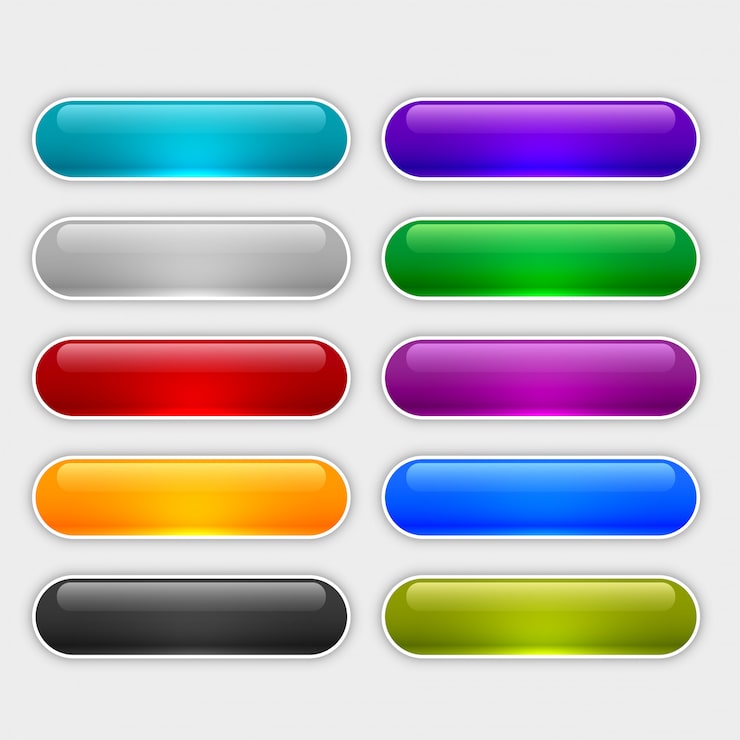
Image source: Magnific
Top Resources for Downloading Editable Button Templates
You do not always need to start from scratch. Several high-quality libraries provide pre-made templates that you can customize in minutes. These resources range from simple icons to complex 3D game buttons.
Buttonmakers.net
A primary authority for physical button supplies. They offer free templates in PSD, AI, and even Word formats for all standard sizes (1", 2.25", 3").
Visit Buttonmakers →Flaticon
Ranks among the top sources for UI icons. Their in-browser editor allows you to change the stroke, color, and size of an "Edit" button before downloading the SVG.
Explore Icons →Magnific (Freepik)
Provides high-fidelity PSD files for 3D and glossy buttons. These are excellent for game UI or high-end marketing materials.
View Graphics →When choosing a template, consider the license. Most free resources require attribution, while premium assets from sites like Magnific often include a commercial license. For those seeking inspiration rather than a direct download, Dribbble remains a highly regarded platform for viewing modern "Edit" button trends, such as neumorphic styles or minimalist pencil icons.
How to Create Editable Buttons for Web Design and UI
In modern web development, "editable" often means "component-based." Instead of creating a static image for every button, developers create a single component that can be reused with different text, colors, and icons. This approach is highly efficient and ensures consistency across a large application.
Using Elementor V4 for WordPress
Elementor recently introduced a significant advancement with its "Editable Button Component." This allows users to treat buttons as nested elements. You can now drag an icon inside a button, change its position relative to the text, and apply specific hover animations to the icon independently of the button background. This level of control was previously only available through custom CSS, making it a popular choice for no-code developers.
Figma Workflows and Troubleshooting
Figma is widely considered one of the best tools for UI prototyping. However, users often encounter a specific bug where the "Edit Pointer" disappears when using shared files or "Figma Make" assets. According to community discussions, this is often resolved by a simple tab reload or by ensuring your software is updated to version 126.2.10 or later. To keep buttons editable for a team, always use "Components" and "Variants" rather than simple grouped shapes.
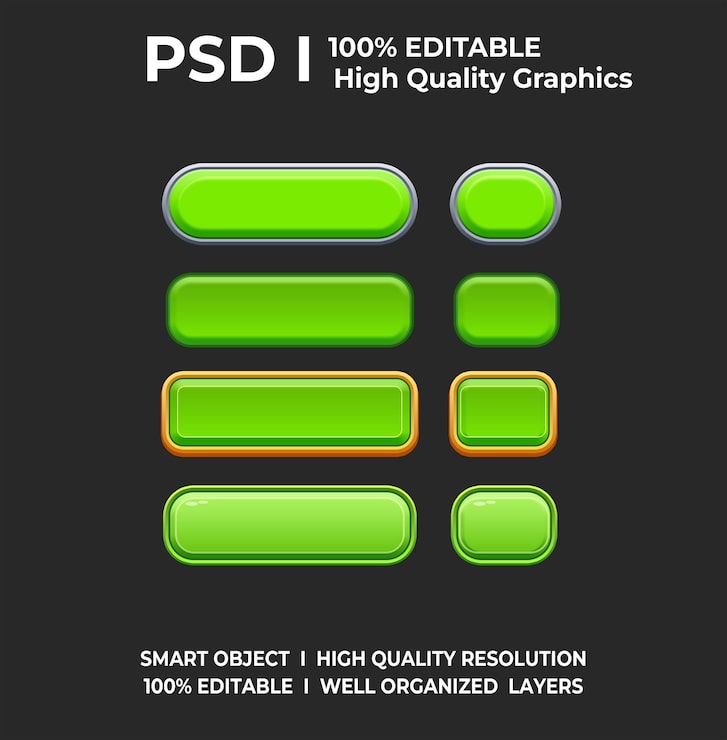
Image source: Magnific
How to Make Button Text Editable for Website Users
There are instances where you want the *user* to be able to edit the button text. This is common in "To-Do" apps, profile builders, or CMS dashboards. While a standard
<button>
tag doesn't allow direct typing, you can achieve this using the
contenteditable
attribute.
This attribute, when set to "true," allows any HTML element to behave like a text input. However, simply making it editable isn't enough; you need JavaScript to handle the "Save" state and ensure the button still functions as a clickable element when not in edit mode.
According to discussions on StackOverflow , this method is effective but requires careful CSS management. You must ensure that the button doesn't collapse when the text is deleted and that the focus ring doesn't interfere with the overall UI design.
Common Problems When Editing Buttons and How to Fix Them
Even with the best tools, technical hurdles are common. Addressing these issues early can save hours of frustration during the design or development phase.
The "Japanese Text" Bug in Blocs
Users of the Blocs web design tool have reported a frustrating issue where button text becomes uneditable, particularly when using non-English characters like Japanese. The community-sourced workaround involves duplicating a functioning button from a different project or page rather than attempting to fix the "corrupted" one. This suggests a metadata conflict within the software's handling of specific character sets.
CSS Hover State Conflicts
A common issue in CMS-based editors (like WordPress or Wild Apricot) is the "Sticky Hover" problem. When you edit a button's base color, the hover state often remains the default color, creating a jarring visual experience. This happens because the inline style applied by the editor has higher specificity than the theme's CSS. To fix this, you often need to add a custom CSS rule using the
!important
flag or target the
:hover
state specifically in the customizer.
Uneditable PDF Templates
Many "editable" PDFs found online are actually flattened images saved as PDFs. If you cannot click the text to change it in Adobe Acrobat, the file likely lacks form fields. In this case, your top-rated option is to open the PDF in a vector editor like Inkscape or Adobe Illustrator, which can often "break apart" the PDF into its original paths and text blocks.
Key Takeaways for Editable Buttons
-
Identify the medium first:
Physical buttons require bleed margins (0.125"), while digital buttons require responsive SVG or CSS formats.
-
Use standard sizes:
Stick to 2.25" for physical badges to ensure compatibility with most button-making machines.
-
Leverage browser editors:
Tools like Flaticon allow for significant customization of icons before you even download them.
-
Master the contenteditable attribute:
For dynamic web apps, this HTML attribute is a highly effective way to allow user-driven text changes.
-
Watch for specificity:
In web design, ensure your hover states are updated alongside your base button colors to avoid visual bugs.
-
Troubleshoot with duplication:
If a button component becomes "un-editable" in software like Blocs or Figma, duplicating a working version is often faster than fixing the original.
Start your next project by downloading a verified template from a trusted source like Buttonmakers or Flaticon to ensure your dimensions and formats are correct from day one.
Frequently Asked Questions
What is the most common size for a physical button template?
The 2.25-inch (57mm) button is widely considered the industry standard for promotional badges. It offers enough surface area for readable text and clear logos without being overly bulky. When designing, remember that the actual paper circle needs to be larger (approx. 2.625") to wrap around the metal shell during the pressing process.
Can I edit a button template in Google Docs?
Yes, though it is not the most powerful tool for the job. You can use the "Insert > Drawing > New" feature to create a circular shape and add a text box inside it. While it lacks the precision of Photoshop or Canva, it is a functional choice for simple printable buttons if you don't have access to specialized design software.
How do I change the color of an SVG button icon?
SVGs are code-based, meaning you can edit them in two ways. You can open the file in a text editor (like Notepad) and change the
fill="#000000"
attribute to your desired hex code. Alternatively, you can use a vector tool like Figma or an online editor like Flaticon to change the color visually before exporting.
Why can't I edit the text on my WordPress button?
This is usually caused by a Z-index conflict or a layer overlay. If another element (like a transparent div or a poorly positioned icon) is sitting "on top" of the button in the editor, you won't be able to click the text to edit it. Check your navigator/layers panel to ensure the button is accessible and not blocked by other components.
What is the best free software for button design?
Canva ranks among the top choices for beginners due to its intuitive interface and pre-made templates. For those needing vector precision for web icons, Inkscape is a highly capable open-source alternative to Adobe Illustrator. For physical button makers, the free templates provided by Buttonmakers.net are an essential resource.