Home
How to Create a Professional Email Signature That Drives Results and Stays Out of Spam
A professional email signature acts as a digital business card that balances branding with technical deliverability. To ensure your signature renders correctly across all devices, follow these core specifications:
In the modern business landscape, every email you send is a branding opportunity. However, a poorly designed signature can do more than just look unprofessional—it can actively harm your email deliverability, trigger spam filters, and disappear entirely when a recipient uses Dark Mode. Creating a signature that works requires a deep understanding of both marketing aesthetics and the technical quirks of email clients like Outlook, Gmail, and Apple Mail.
What to Include in a Professional Email Signature
A professional signature should be concise yet informative. Overloading a signature with excessive social links or inspirational quotes often leads to visual clutter and increased spam scores. According to industry standards, a high-performing signature typically focuses on five core elements that establish identity and credibility.
The Five Essential Elements for Every Signature
To maintain a professional appearance, ensure your signature includes the following details in a clear hierarchy:
- Full Name: Your professional name, often bolded or in a slightly larger font size (11-12pt).
- Job Title and Department: Provides context for your role within the organization.
- Company Name: Often accompanied by a small, high-resolution logo.
- Phone Number: Include your direct line or mobile number, formatted for click-to-call functionality.
- Email Address: While it may seem redundant, including your email address ensures it is easily copyable even if the header information is obscured.
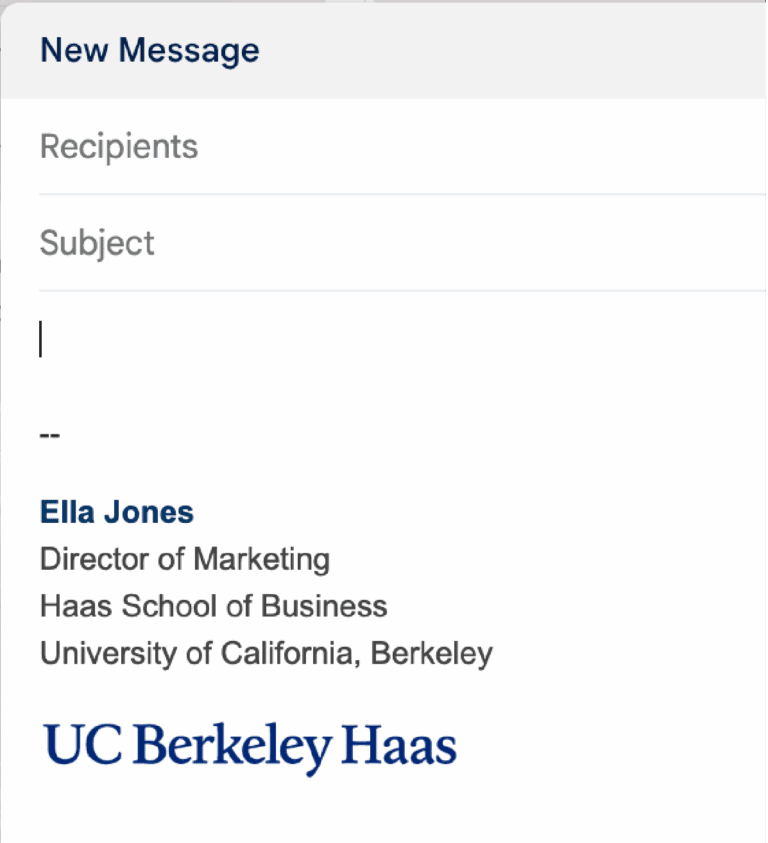
Image source: UC Berkeley Haas - University of California, Berkeley
Legal Requirements for Business Addresses
Many professionals overlook the legal necessity of including a physical business address in their email communications. Under the U.S. CAN-SPAM Act and the European Union's GDPR , commercial emails are often required to provide a valid physical postal address. As noted by MailerLite , this is not just a matter of professionalism but a compliance requirement that helps verify the legitimacy of the sender and protects recipient privacy.
Strategic Use of Social Media Icons
While it is tempting to link to every platform you use, experts recommend limiting social media icons to the top 3–4 most relevant platforms for your industry. For B2B roles, LinkedIn and X (formerly Twitter) are typically prioritized. Including too many icons can trigger spam filters, as filters often calculate the ratio of links to text. Furthermore, ensure these icons are small (around 20x20px) to prevent them from dominating the visual space.
Technical Specifications for a Perfect Layout
Designing an email signature is fundamentally different from designing a website. Email clients use outdated rendering engines—Outlook, for instance, uses the Microsoft Word engine to render HTML—which means modern CSS techniques like Flexbox or Grid often fail. To achieve consistency, you must rely on traditional HTML tables.
Standard Dimensions and Mobile Optimization
The gold standard for desktop email signature width is 600px . This width ensures the signature fits within the reading pane of most desktop clients without horizontal scrolling. However, with more than 50% of emails opened on mobile devices, your design must also accommodate a 320-450px viewport . A "stacked" layout, where elements move from side-by-side to one-on-one, is widely regarded as a top choice for mobile responsiveness.
<img width="200" height="200" ...>
). Failure to do so can cause images to "explode" to their full resolution in certain versions of Outlook, potentially taking up the entire screen.
Font Selection and Hierarchy
Stick to web-safe fonts to ensure your signature looks the same on the recipient's screen as it does on yours. While custom brand fonts are appealing, they will default to a generic font if the recipient doesn't have that specific typeface installed. Ranks among the top choices for email fonts include:
- Arial: The most universal sans-serif option.
- Calibri: A modern, clean choice that is standard across Microsoft products.
- Aptos: The new default font for Microsoft 365, offering a contemporary look.
- Georgia: A reliable serif font for a more traditional or academic feel.
For hierarchy, set your name at 11-12pt and your contact details at 8-10pt. This contrast guides the eye to the most important information first.
How to Design for Dark Mode and Mobile Devices
Dark Mode is one of the most significant challenges in modern email design. When a recipient toggles Dark Mode, the email client automatically inverts colors—turning white backgrounds black and dark text white. This can cause logos with transparent backgrounds to disappear or look "muddy."
The White Stroke Solution
To ensure your logo remains visible regardless of the user's theme, apply a thin (2px) white stroke or glow around the edges of dark logos. In Light Mode, this stroke is invisible against the white background. In Dark Mode, it provides a necessary border that keeps the logo distinct from the dark background. This technique is a significant advancement in cross-platform signature design.
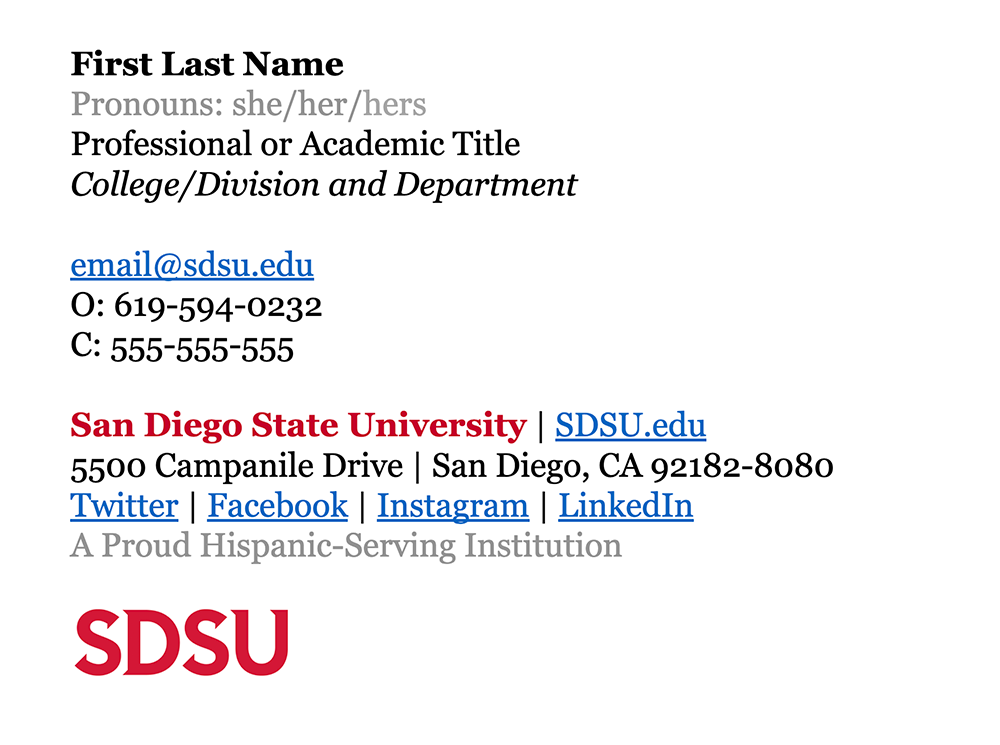
Image source: SDSU Brand Guidelines - San Diego State University
Testing Contrast Ratios
Beyond logos, you must consider text legibility. If you use a light gray font for disclaimers, it may become unreadable when inverted. Use tools to test your color contrast ratios, ensuring that all text elements meet accessibility standards in both light and dark environments. A signature that fails in Dark Mode reflects poorly on your brand's attention to detail.
Why Your Email Signature Might Be Triggering Spam Filters
A signature is more than just a visual footer; it is a piece of code that email servers analyze for safety. Certain common practices can inadvertently flag your emails as spam, reducing your reach and damaging your sender reputation.
The "Attachment" Bug and Image Hosting
Have you ever received an email where the signature images appear as attachments like
image001.png
? This happens when images are embedded directly into the email. To fix this, host your images on a web server or a Content Delivery Network (CDN) and link to them via a URL. While this may require the recipient to "Click to display images," it prevents your email from looking like it has suspicious attachments, which is a common spam trigger.
The Danger of Shortened URLs
Never use URL shorteners like bit.ly or tinyurl in your email signature. Spam filters frequently flag these because they are commonly used by malicious actors to hide the true destination of a link. Instead, use full, descriptive URLs or hyperlinked text that clearly indicates where the link leads. According to Exclaimer , keeping your link count to 2–3 maximum is a top-rated strategy for maintaining high deliverability.
Setting Up Your Signature in Every Major Email Client
The process for installing a signature varies significantly between platforms. It is important to note that a signature set up on your desktop Gmail account will not automatically sync to your Gmail mobile app; these must often be configured separately.
- Gmail (Web): Navigate to Settings > See all settings > General. Scroll down to the "Signature" section. You can create multiple signatures and choose which one to use for new emails versus replies.
- New Outlook: The "New Outlook" interface differs from the "Classic" version. Go to Settings (gear icon) > Accounts > Signatures. Note that signatures in the New Outlook are stored in the cloud, but migration from the classic desktop app is not always automatic.
- Apple Mail (Mac): Go to Mail > Settings > Signatures. You can drag and drop images here, but for HTML signatures, you may need to paste the code into a placeholder file in the Library folder to ensure formatting holds.
- iPhone/iPad: Go to Settings > Mail > Signature. If you want to use an HTML signature, copy it from a sent email, paste it into the box, and "Shake to Undo" the automatic formatting changes iOS applies.
Balancing Branding with Accessibility Standards
Accessibility is no longer optional in professional communications. A signature that relies solely on an image for contact information is invisible to vision-impaired users who rely on screen readers. Furthermore, if a recipient has "Load Images" turned off, an image-only signature will appear as a blank box.
The Dartmouth Standard for Minimalism
Some institutions, such as Dartmouth College , recommend a minimalist approach that avoids images entirely to ensure Section 508 compliance. While most brands will still choose to include a logo, the "Dartmouth Standard" highlights the importance of having all critical contact information in plain text rather than embedded in a graphic.
"An accessible signature is a functional signature. By ensuring screen readers can parse your contact details, you extend your professional reach to every possible recipient."
Using Alt Text Correctly
For every image in your signature, you must include descriptive Alt Text. Instead of leaving it blank or using a file name like "logo_final_v2.png," use "Company Logo" or "[Your Name] Headshot." This allows screen readers to describe the element to the user, maintaining the signature's utility for everyone.
Turning Your Signature into a Marketing Channel
For many organizations, the email signature is an untapped marketing asset. With the average employee sending thousands of emails per year, the cumulative impressions are significant. By treating the signature as a dynamic banner space, you can drive measurable ROI.
Tracking ROI with UTM Parameters
Don't just link to your website; link to it with intent. Use UTM parameters (e.g.,
?utm_source=email&utm_medium=signature&utm_campaign=brand
) to track exactly how much traffic your signature generates in Google Analytics. This data-driven approach allows you to see which call-to-action (CTA) buttons—such as "Book a Demo" or "Read our Latest Blog"—are actually performing.
The Unilever Case Study
A notable example of signature marketing success is Unilever. By adding a simple "Follow" button to their corporate email signatures, the company reportedly grew their LinkedIn following by 195,000 in just 10 months. This demonstrates that signatures can be a highly impactful tool for social growth when implemented consistently across an entire organization.
Choosing the Right Email Signature Tool
Depending on your needs, you might choose to code a signature manually, use a free generator, or invest in an enterprise management platform. Each approach has distinct advantages and trade-offs.
| Feature | Manual HTML | Free Generator (HubSpot) | Enterprise (Exclaimer/CodeTwo) |
|---|---|---|---|
| Cost | Free | Free | Paid (Subscription) |
| Ease of Use | Difficult (Requires coding) | Easy (Drag & Drop) | Moderate (IT Setup) |
| Dark Mode Support | Manual control | Basic | Advanced/Automated |
| Centralized Management | No | No | Yes (Active Directory Sync) |
| Analytics | Manual UTMs | None | Integrated Dashboard |
For individuals, a top-rated generator like HubSpot or WiseStamp offers a quick way to build a polished look. However, for large teams, enterprise tools are a strong contender because they allow IT departments to push updates to all employee signatures simultaneously, ensuring brand consistency and legal compliance without requiring manual intervention from staff.
Frequently Asked Questions
What is the best image size for an email signature logo?
While there is no single "perfect" size, a logo dimensions of 200x200px is widely regarded as a top choice for balance and clarity. It is large enough to be legible on high-DPI displays but small enough to not overwhelm the text. Crucially, you should upload the image at twice the intended size (e.g., 400x400px) and then use HTML attributes to scale it down to 200x200px. This ensures the logo looks sharp on Retina and 4K screens while maintaining a consistent layout.
Why does my email signature look blurry on some screens?
Blurriness usually occurs when an image's resolution is too low for modern high-density displays. Most smartphones and modern laptops have twice the pixel density of older monitors. If you provide a 100px image for a 100px space, the device has to "stretch" the pixels, resulting in a fuzzy appearance. To fix this, always save your signature images at 72-96 DPI but at double the physical dimensions you intend to display, then constrain them using HTML width and height tags.
Are email signature disclaimers legally required?
The legal necessity of a disclaimer depends on your jurisdiction and industry. In the UK and EU, companies are often required to include their registered office address and company registration number. In the US, the CAN-SPAM Act requires a physical address for commercial messages. While long, multi-paragraph legal disclaimers are rarely enforceable in court, they serve as a deterrent and a signal of regulatory compliance. Many organizations find that a short, one-sentence link to a full privacy policy is a more modern and less cluttered alternative.
How do I stop my signature images from becoming attachments?
Images become attachments when they are "embedded" directly into the email body (CID encoding). To prevent this, you must "link" to the images instead. This involves uploading your logo and icons to a public web server or a service like Imgur or Google Drive (with public permissions) and using the direct image URL in your HTML
<img src="...">
tag. This keeps the email file size small and ensures the images are treated as external assets rather than file attachments.
Should I include my cell phone number in my signature?
This is a matter of personal and professional preference. For sales professionals and account managers, including a mobile number is often a top-tier choice for increasing accessibility and closing deals faster. However, for those in internal-facing roles or those concerned with privacy, a general office line or a link to a scheduling tool like Calendly may be more appropriate. If you do include a mobile number, ensure it is formatted with the international country code (e.g., +1) to assist global clients.
Key Takeaways for a Professional Signature
- Limit width to 600px to ensure compatibility with desktop and mobile reading panes.
- Use a white stroke around dark logos to prevent them from disappearing in Dark Mode.
- Host images on a CDN to avoid the common "image as attachment" bug.
- Include a physical address to remain compliant with international privacy laws like GDPR.
- Hardcode image dimensions in HTML to prevent layout breaks in Microsoft Outlook.
- Use UTM parameters on all links to track the marketing impact of your signature.
- Prioritize accessibility by using Alt Text and web-safe fonts like Arial or Aptos.
Start by auditing your current signature against these technical standards to ensure your next email makes the right impression.