Home
How to Get Microsoft PowerPoint for Free and Use It Like a Pro
Yes, Microsoft officially provides a free version of PowerPoint through Microsoft 365 for the Web and dedicated mobile apps for iOS and Android. While the full desktop software requires a subscription, the web-based version allows you to create, edit, and share presentations at no cost. You simply need a free Microsoft account and an active internet connection to access these tools via Microsoft365.com .
Accessing the Free Version of PowerPoint Online
For many users, the most accessible way to use PowerPoint without a financial commitment is through the web interface. Microsoft has transitioned its traditional Office Online suite into the broader Microsoft 365 ecosystem, offering a surprisingly robust set of tools that run directly in your browser. This version ranks among the top choices for students, casual users, and professionals who need to make quick edits on the go.
Setting Up Your Microsoft Account
To begin, you must have a Microsoft account. If you already use Outlook.com, Hotmail, or even an Xbox Live account, you are ready to go. If not, you can sign up for free in just a few minutes. Once logged in at PowerPoint for the Web , you are greeted with a dashboard that mirrors the professional layout of the paid desktop application. You can start with a blank presentation or choose from a variety of pre-designed templates provided by Microsoft.
Understanding OneDrive Storage Requirements
A critical distinction of the free web version is how it handles files. Unlike the desktop app, which allows you to save files locally to your hard drive, the free web version must save your work to OneDrive, Microsoft's cloud storage service. Every free account comes with 5GB of storage, which is typically more than enough for hundreds of slide decks. This cloud-centric approach ensures that your work is automatically saved as you type, significantly reducing the risk of data loss due to browser crashes or power outages.
Using PowerPoint for Free on Mobile and Tablet Devices
The transition from desktop to mobile has been a major focus for Microsoft. The PowerPoint mobile app is available for free on both the Google Play Store and the Apple App Store. This app is not merely a viewer; it is a functional editor that allows you to build entire decks from your smartphone or tablet.
On mobile devices, the interface is optimized for touch. You can drag and drop elements, use your phone's camera to insert photos directly into slides, and even use "Presenter View" to rehearse your speech while looking at your notes on your screen. For tablet users, especially those with an iPad or a Samsung Galaxy Tab, the experience is remarkably close to the desktop version, supporting external keyboards and mice for a more traditional workflow.
Syncing is handled seamlessly through your Microsoft account. If you start a presentation on your laptop using the web version at lunch, you can open the mobile app on the train home and find your latest edits waiting for you. This cross-device harmony is a significant advancement for productivity in the modern hybrid work environment.
Comparing PowerPoint Web and Desktop Features
While the free version is exceptionally strong, it is important to understand what you are sacrificing by not paying for a Microsoft 365 subscription. The "Feature Gap" is real, and for power users, these limitations can be a hurdle. The most notable restriction is the Offline Barrier . The free web version requires a constant internet connection; if your Wi-Fi drops, your ability to edit stops almost immediately.
Furthermore, professional users often rely on the Quick Access Toolbar (QAT) to streamline their workflow. This customization feature is absent in the web version, meaning you may spend more time clicking through tabs to find specific tools. Additionally, advanced automation through VBA (Visual Basic for Applications) and Macros is not supported in the browser, which can be a dealbreaker for financial analysts or data scientists who use PowerPoint for complex reporting.
| Feature | PowerPoint Web (Free) | PowerPoint Desktop (Paid) |
|---|---|---|
| Cost | $0 (Free) | Subscription Required |
| Offline Editing | No | Yes |
| Auto-Save to Cloud | Yes (Mandatory) | Yes (Optional) |
| Quick Access Toolbar | No | Yes |
| VBA / Macros | No | Yes |
| Advanced Animations | Limited | Full Suite |
| Custom Fonts | Limited to Web Fonts | Any Installed Font |
Three Ways to Use AI to Build Your Slides for Free
The landscape of presentation design has been notably innovative in recent months, thanks to the integration of Artificial Intelligence. You no longer need to stare at a blank white slide for hours. Several tools now allow you to generate a foundational deck in seconds, which you can then refine in the free version of PowerPoint.
- Microsoft Copilot: While the full version of Copilot is often tied to paid tiers, Microsoft is increasingly integrating basic AI assistance into the free ecosystem to help users find information and structure their content more effectively.
- Adobe Express Generative AI: Adobe offers a highly impactful "text-to-presentation" tool. You can enter a simple prompt—such as "Create a 5-slide deck about renewable energy trends"—and the AI will generate layouts, images, and text. You can then export these designs to use within your PowerPoint workflow.
- SlidesCarnival AI: Known for their template library, SlidesCarnival now offers a utility-based AI presentation maker. This is a top-tier option for users who need a rapid starting point without the complexity of professional design software.
The Cross Platform Power Stack Workflow
To achieve professional results without spending a dime, many experts use a "Power Stack" workflow. This involves combining the strengths of different free tools to bypass the limitations of any single application. By moving your project through these stages, you can create a deck that looks like it was designed by a premium agency.
Start by typing your raw content and structure into the free web version. Focus on the message rather than the visuals at this stage.
Import your basic .pptx file into Adobe Express. Use their AI tools to apply professional color palettes and high-quality stock imagery that might be restricted in the free PowerPoint library.
Export the file back to .pptx format. Open it one last time in PowerPoint for the Web to ensure all animations and transitions are functioning correctly before your presentation.
Top Free Alternatives to PowerPoint for Offline and Design Use
If the limitations of the web version are too restrictive, several alternatives stand out as top choices. These tools often provide features that Microsoft reserves for its paid users, such as offline editing or more advanced graphic design capabilities.
Google Slides: The Collaboration Leader
Google Slides is perhaps the most famous alternative. It is entirely free and excels in real-time collaboration. While it lacks some of the deep formatting features of PowerPoint, its ability to handle multiple editors simultaneously without lag makes it a popular choice for group projects and remote teams. It also integrates perfectly with Google Drive, providing a similar cloud-first experience.
Canva: For High-Impact Visuals
For users who are not professional designers, Canva offers a notably innovative approach. Instead of focusing on bullet points, Canva prioritizes visual storytelling. It provides thousands of high-quality elements and a drag-and-drop interface that makes creating beautiful slides remarkably easy. Many users find that Canva decks are more engaging for marketing and creative pitches.
LibreOffice and WPS Office: The Offline Champions
If you absolutely need a desktop application that works without an internet connection, LibreOffice Impress and WPS Office are highly recommended. These are open-source or "freemium" suites that you install on your computer. They offer a high degree of compatibility with .pptx files and include many of the advanced features—like the Quick Access Toolbar and complex animations—that are missing from PowerPoint’s free web version.
Where to Find Professional Free Templates Without Limits
A presentation is only as good as its visual foundation. While Microsoft provides basic templates, they can often feel generic. To stand out, you should look toward third-party libraries that offer professional-grade designs for free.
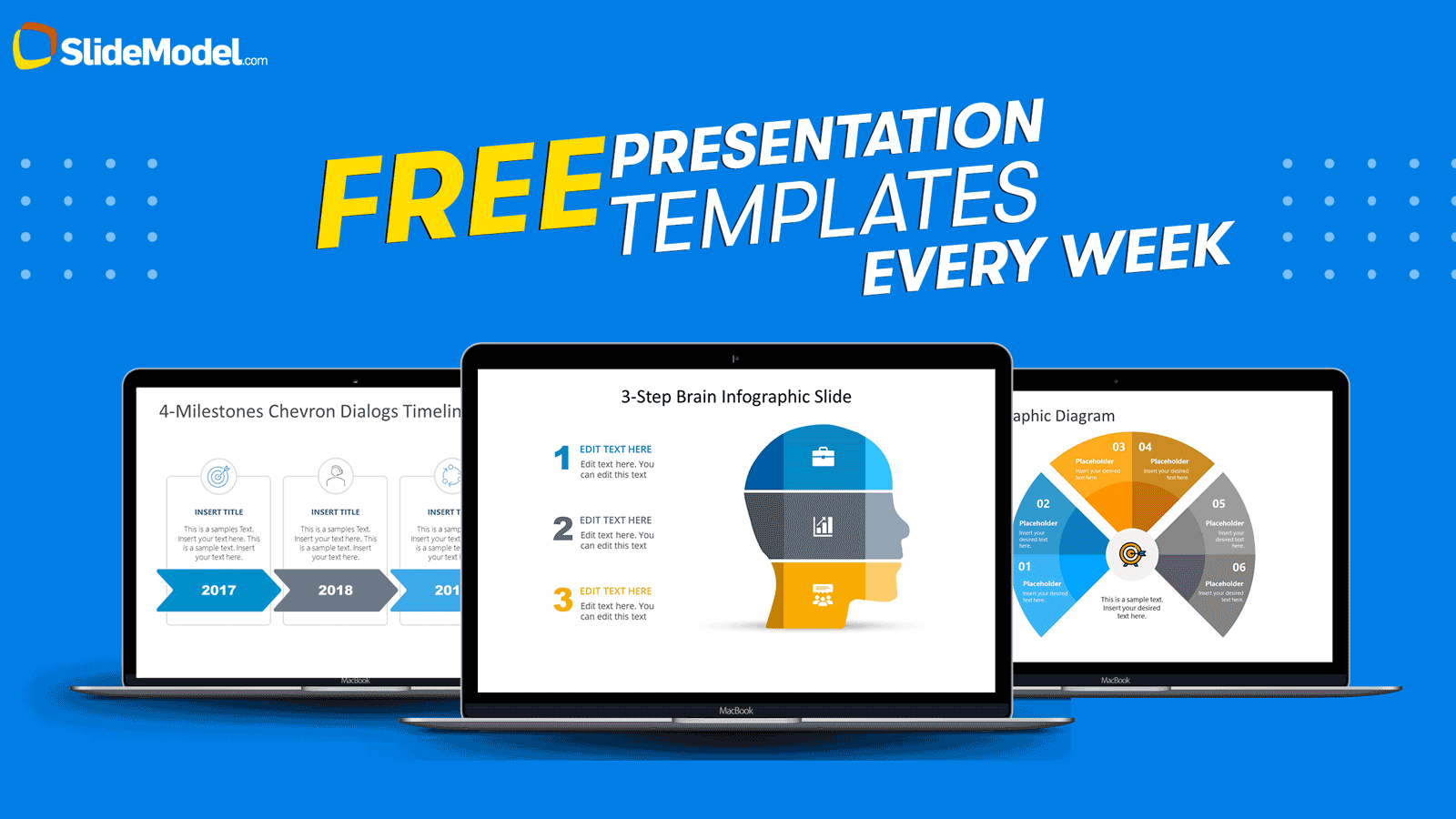
Image source: SlideModel
One of the most popular sources is Slidesgo . They offer a vast array of creative and business-focused templates. However, be aware that free users are typically limited to three downloads per month. If you need more variety without restrictions, SlidesCarnival is a top-tier resource that offers 100% free templates with no registration or download limits.
When choosing a template, consider Microsoft’s "Accessible Templates" . These are specifically designed to be inclusive, ensuring that your presentation can be easily read by people using screen readers or those with visual impairments. Using these templates is not just a matter of ethics; it is a professional standard in modern business storytelling.
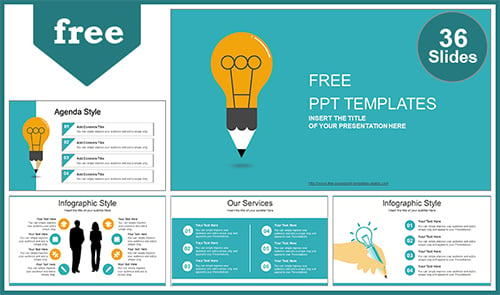
Image source: www.free-powerpoint-templates-design.com
Expert Hacks to Make Free Presentations Look Professional
According to management consultants at Toptal , the difference between an amateur deck and a professional one isn't the software—it's the methodology. Even with the free web version, you can produce world-class results by following a few expert principles.
The "One Takeaway" Rule
One of the most common mistakes is cluttering slides with too much information. Experts recommend the "One Takeaway" rule: every single slide should have exactly one key message. If you have three points to make, use three slides. This prevents "content fatigue" and ensures your audience remembers the core of your argument. Use large, bold headers to state that takeaway clearly at the top of the slide.
Slide Master Mastery
Don't waste time formatting every slide individually. Even in the free web version, you can access the Slide Master view. This allows you to set global fonts, colors, and logo placements. By changing the Master Slide, every other slide in your deck updates automatically. This ensures visual consistency and can save you hours of manual labor, especially on longer presentations.
Troubleshooting Common Free PowerPoint Issues
Using free software sometimes comes with technical quirks. Being aware of these can prevent a last-minute disaster before a big meeting. One documented issue involves the "DeleteUnusedMasters" bug . Some third-party tools or older versions of PowerPoint (like the 2007 edition) may fail to open files if unused master slides have been deleted by an automated cleanup tool. If you are sharing your file with someone using very old software, it is safer to leave the master slides untouched.
Another common frustration is OneDrive Sync Errors . If you make changes on the web and they don't appear on your mobile app, the most frequent cause is a sync delay. Ensure you have a stable connection and try manually refreshing the file list in the mobile app. Finally, be wary of Formatting Breaks . When moving a file from Google Slides back to PowerPoint, fonts and spacing can sometimes shift. Always do a final "sanity check" of your layout in the native PowerPoint web environment before presenting.
Frequently Asked Questions About Free PowerPoint
Key Takeaways for Using PowerPoint for Free
Mastering PowerPoint without a subscription is entirely possible by leveraging the right tools and workflows. Here is how to succeed:
- Use Microsoft 365 for the Web for the most compatible free experience.
- Install the mobile app to make edits and present from your phone or tablet.
- Leverage SlidesCarnival for high-quality templates without download limits.
- Apply the "One Takeaway" rule to ensure every slide has a clear, singular message.
- Utilize the Slide Master to maintain professional consistency across your entire deck.
- Try the Cross-Platform Stack by using Adobe Express AI to enhance your PowerPoint outlines.
- Avoid "cracked" software and stick to official web or open-source alternatives for security.
Start your next project by signing into Microsoft365.com and exploring the free template gallery to see what is possible today.