Home
Home
How to Compose a Message on Every Major Platform and Use AI to Write Faster
To compose a message , look for the "New," "Compose," or "+" icon in your application. In Outlook , use the "New Mail" button or Ctrl + N . In Gmail , click the "Compose" button in the left sidebar. On Android , open Google Messages and tap "Start Chat." For professional efficiency, modern tools now offer AI writing assistants like Magic Compose to draft replies automatically based on conversation history.
Locating the Compose Button Across Different Applications
Finding the starting point for a new conversation is the first step in digital communication. While the terminology varies, most platforms follow a consistent visual language. Whether you are using a desktop email client or a mobile messaging app, the "Compose" action is typically highlighted to ensure ease of access.
Finding the New Message Icon in Desktop Email Clients
In Microsoft Outlook , the process depends on whether you are using the Classic, New, or Web version. In most modern iterations, the New Mail button is prominently placed in the top-left corner of the Home ribbon. For those who prefer efficiency, Microsoft Support highlights that the keyboard shortcut Ctrl + N (Windows) or Command + N (Mac) will instantly open a new message window. Outlook also features "Suggested Contacts," which populates the "To" field based on your recent interactions, significantly reducing the time spent searching for addresses.
Gmail users will find the "Compose" button in the left-hand sidebar, often accompanied by a colorful plus icon. In legacy webmail systems, this might appear as a simple text link. According to documentation from the University of Maryland , navigating these fields in older systems is best handled using the Tab key to move sequentially from the recipient field to the subject line and finally the message body.
Starting Conversations on Mobile Messaging Apps
On mobile devices, the interface is optimized for thumb-reach. In Google Messages for Android, the primary action is the "Start Chat" button, usually located in the bottom-right corner. Apple's iMessage uses a "Pencil and Square" icon in the top-right corner of the Messages list. These icons are designed to be intuitive, allowing users to initiate a text or multimedia message with a single tap.

Image source: YouTube
Identifying Universal Icons in Multi-Channel CRM Tools
For professional teams managing high volumes of communication, multi-channel tools like Front simplify the process. These platforms use a universal "plus icon (+)" that allows users to send messages across different channels—such as Email, SMS, or WhatsApp—from a single unified interface. According to Front Help , this centralized approach helps maintain context across various customer touchpoints without switching apps.
Essential Steps for Drafting a Professional Message
Composing a message involves more than just typing text; it requires attention to structure and metadata to ensure the recipient understands the context and urgency of the communication. A well-structured message ranks among the top ways to ensure a prompt and helpful response.
Managing Recipients and Subject Lines Effectively
The "To" field is where you define your primary audience, but professional tools often include "CC" (Carbon Copy) and "BCC" (Blind Carbon Copy) for broader visibility. The Subject Line is perhaps the most critical component of an email. It serves as the first impression and determines whether the recipient opens the message. In collaborative environments, some tools distinguish between a "Message Subject" (what the recipient sees) and a "Conversation Subject" (an internal label for team organization).
{{first_name}}
. This allows you to personalize hundreds of messages simultaneously, which is widely regarded as a top-tier strategy for increasing engagement rates.
Formatting Text and Adding Attachments
Modern message composition defaults to HTML formatting , which allows for rich text features like bolding, italics, and bulleted lists. However, there are instances where Plain Text is preferred, particularly for automated systems or to ensure compatibility with very old email clients. To add files, look for the universal paperclip icon . Most platforms now support drag-and-drop functionality, allowing you to pull files directly from your desktop into the message body.
Developer Perspective: Jetpack Compose for Android
For those building the apps we use, "Compose" has a different meaning. In the world of Android development,
Jetpack Compose
is a modern toolkit for building native UI. The
BasicTextField
component serves as the foundation for the message input boxes we interact with daily. According to
Android Developers
, this declarative approach allows for more responsive and fluid text entry experiences compared to older view-based systems.
Leveraging Artificial Intelligence for Message Composition
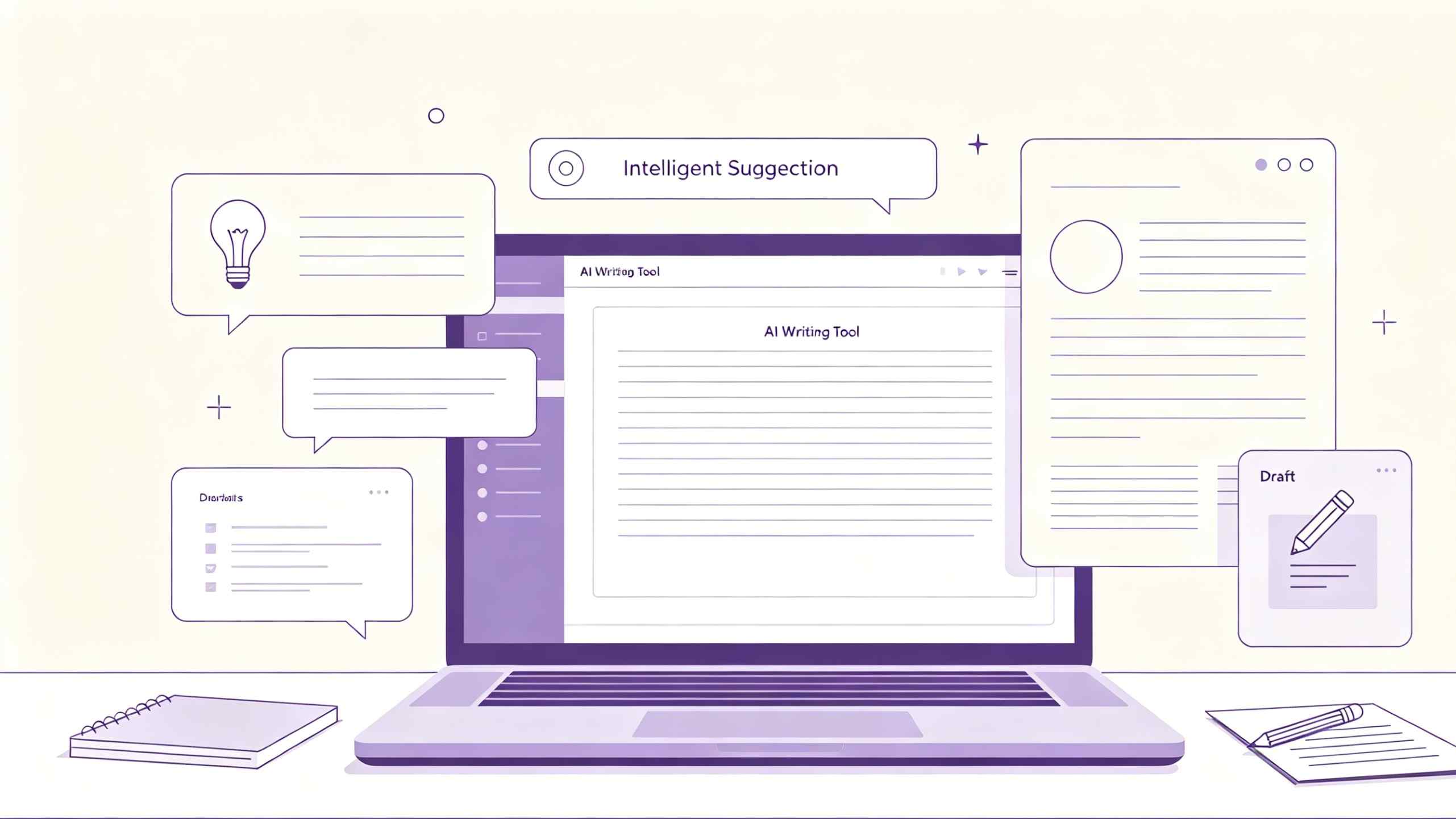
The landscape of messaging has changed significantly with the integration of generative AI. These tools are no longer just for checking grammar; they can now draft entire responses based on the context of your conversation, saving significant time for busy professionals.
Drafting Smart Replies with Google Magic Compose
Magic Compose is a notably innovative feature within Google Messages that uses AI to suggest responses. It offers various styles, such as "Professional," "Chill," or "Lyrical," to match the desired tone. For privacy-conscious users, Google utilizes Gemini Nano for on-device processing on supported hardware. This means the AI analyzes the last 20 messages of a conversation locally to provide contextually relevant suggestions without sending your private data to the cloud, as noted in Google Support .
Enhancing Productivity with Browser-Based AI Extensions
Beyond native platform features, third-party tools like Compose AI offer a significant step forward in writing efficiency. These Chrome extensions work across almost any website, from Gmail to LinkedIn. Research suggests that high earners spend approximately 87% of their workweek typing , and AI writing assistants can potentially reduce this burden by up to 40% by providing "ghost text" autocompletions as you type, according to data from Compose AI .
Optimizing AI Prompts for Better Tone and Clarity
To get the most out of an AI assistant, the quality of the prompt is essential. Instead of a generic "Write an email," successful users employ specific commands like "Remix this to be more concise" or "Shorten this for a mobile recipient." This level of prompt engineering ensures the output aligns with professional standards and reduces the need for manual editing.

Image source: Business - Tuts+
Resolving Common Issues When Composing Messages
Even with modern software, users frequently encounter technical hurdles that prevent them from sending messages. Understanding these common pitfalls can help you resolve issues quickly without needing external support.
Troubleshooting Missing Compose Buttons and Interface Errors
If the "Compose" or "New" button is missing, the culprit is often an outdated browser or a cache conflict. In professional environments, this may also be a permissions issue . For instance, in shared inboxes like those found in Front or Outlook, an administrator may have restricted your ability to initiate new threads from specific addresses. Always ensure your software is updated to the latest version to maintain compatibility with new UI elements.
Fixing the Spoiled Thread Bug in AI Workflows
A specific issue known as the "Spoiled Thread" bug has emerged in AI-assisted messaging workflows (such as those using OpenAI's API). If a message containing an invalid image URL is sent, the entire conversation thread may become "spoiled." Subsequent text-only messages will fail with an "Invalid Image" error because the system continues to reference the broken asset. The only reliable fix is to terminate the current thread and start a new one, a common troubleshooting step in automated environments.
Understanding Why SMS Messages Fail to Send
For professional users, particularly in healthcare or finance, SMS messages may fail even when the recipient has not opted out. This is often due to carrier-level filtering . Carriers have become increasingly aggressive in blocking messages that appear automated or spammy. Using public link shorteners like Bitly is a major trigger for these filters. To improve deliverability, experts recommend using branded, secure URLs and identifying yourself clearly in the first line of the message.
Professional Etiquette and Deliverability Standards
How you compose a message is just as important as the platform you use. Following established etiquette not only ensures your message is read but also protects your reputation as a sender.
Avoiding Spam Filters Through Proper Formatting
Spam filters analyze the content of your message for specific red flags. Avoid using ALL CAPS in subject lines or the body, as this is a classic indicator of spam. Similarly, excessive use of special characters (like multiple exclamation points) can decrease your credibility. Maintaining a balanced ratio of text to links and images is a top-rated practice for ensuring your email lands in the inbox rather than the junk folder.
Establishing Trust with Branded Links and Clear Identification
Trust is the foundation of digital communication. When sending links, avoid generic shorteners which are frequently used by bad actors. Instead, use branded links that include your company name. Furthermore, always identify yourself and the purpose of your message immediately. This transparency reduces the likelihood of a recipient marking your message as spam, which can have long-term negative effects on your domain's sender reputation.
Managing Outbound Workflows with Scheduling Tools
Sometimes the best time to compose a message is not the best time to send it. Features like "Schedule Send" or "Snooze" allow you to draft messages during your productive hours while ensuring they arrive at a time that is convenient for the recipient. This is particularly useful for teams working across different time zones, as it prevents notifications from disturbing colleagues during their off-hours.
Comparison of AI Messaging Tools
| Feature | Google Magic Compose | Compose AI (Extension) | Front AI |
|---|---|---|---|
| Primary Platform | Android / Google Messages | Chrome / Web Browsers | Front CRM / Desktop |
| Privacy Model | On-device (Gemini Nano) | Cloud-based processing | Enterprise Cloud |
| Best For | Casual SMS & Quick Replies | General Web Writing & Email | B2B Customer Support |
| Context Window | Last 20 messages | Highlighted text / Page content | Full CRM History |
Frequently Asked Questions
What is the difference between 'Reply' and 'Compose'?
The "Compose" action is used to initiate an entirely new conversation thread with a fresh subject line. In contrast, "Reply" continues an existing thread, maintaining the history of previous messages. Using "Compose" for a new topic is a top choice for keeping your inbox organized, as it prevents unrelated discussions from being buried in long, unrelated email chains.
Where is the compose button on my smartphone?
On most smartphones, the compose button is located in one of the corners of the messaging app. For Android users, it is typically a circular "Start Chat" or "+" button in the bottom-right. For iPhone users, it is a square icon with a pencil in the top-right. If you cannot see it, ensure you are on the main conversation list screen and not inside an active chat.
How do I use AI to draft a message automatically?
To use AI, look for a "sparkle" icon or a "Help me write" button within your message editor. In Google Messages, this is the Magic Compose feature. In browser-based tools like Compose AI, you can type a forward slash (/) or use a shortcut to trigger the assistant. You then provide a brief prompt, and the AI generates a draft that you can refine before sending.
Why is the compose button missing in my email app?
A missing compose button is usually caused by a UI glitch or a permissions restriction. Try refreshing your browser or restarting the app. If you are using a work account, check with your IT department to ensure your account has the necessary permissions to send external mail. In some cases, a full inbox or a suspended account can also disable the ability to compose new messages.
Is my data private when using AI to compose messages?
Privacy depends on the tool you use. Google's Magic Compose on supported Pixel and Samsung devices uses on-device AI, meaning your messages aren't sent to a server for processing. However, many browser extensions and cloud-based AI tools do process data on their servers. Always check the privacy policy of the specific tool to understand how your data is handled and whether it is used for model training.
Key Takeaways for Better Messaging
Mastering the art of composing a message involves a blend of technical knowledge and strategic communication. By following these steps, you can ensure your messages are both professional and effective:
- Locate the correct icon for your platform, such as the "+" in Front or "New Mail" in Outlook.
- Use keyboard shortcuts like Ctrl + N to speed up your workflow on desktop devices.
- Leverage AI assistants like Magic Compose to draft contextually relevant replies in seconds.
- Avoid spam triggers such as ALL CAPS and public link shorteners to ensure high deliverability.
- Personalize your outreach using dynamic variables for a more professional touch.
- Troubleshoot effectively by checking for "Spoiled Threads" or carrier-level SMS filters.
Start by auditing your current messaging habits and implementing one AI-assisted tool to see how much time you can save in your daily workflow.