Home
Home
How to Use the Gmail Compose Window to Write Emails Faster with AI
To start a new email, locate the "Compose" button in the top-left corner of the Gmail desktop interface. On mobile devices (iOS and Android), look for the floating pencil icon in the bottom-right corner. In 2026, the compose window has evolved into a sophisticated drafting suite featuring Gemini AI for generative writing and Smart Compose for predictive text suggestions.
The Gmail compose window is no longer just a blank box for text entry; it has become a central hub for digital communication, integrating advanced artificial intelligence and collaborative tools. Whether you are a casual user or a power user managing hundreds of daily messages, understanding the nuances of the "Compose" suite is essential for maintaining productivity. As of September 2026, Google has integrated Gemini AI deeply into the drafting process, allowing users to move from a simple prompt to a polished professional email in seconds.
This guide explores the transition from simple text entry to an AI-powered drafting suite, detailing how to leverage new features like the Google Docs building blocks and hidden keyboard shortcuts. By mastering these tools, you can significantly reduce the time spent on repetitive correspondence and focus on high-value tasks.

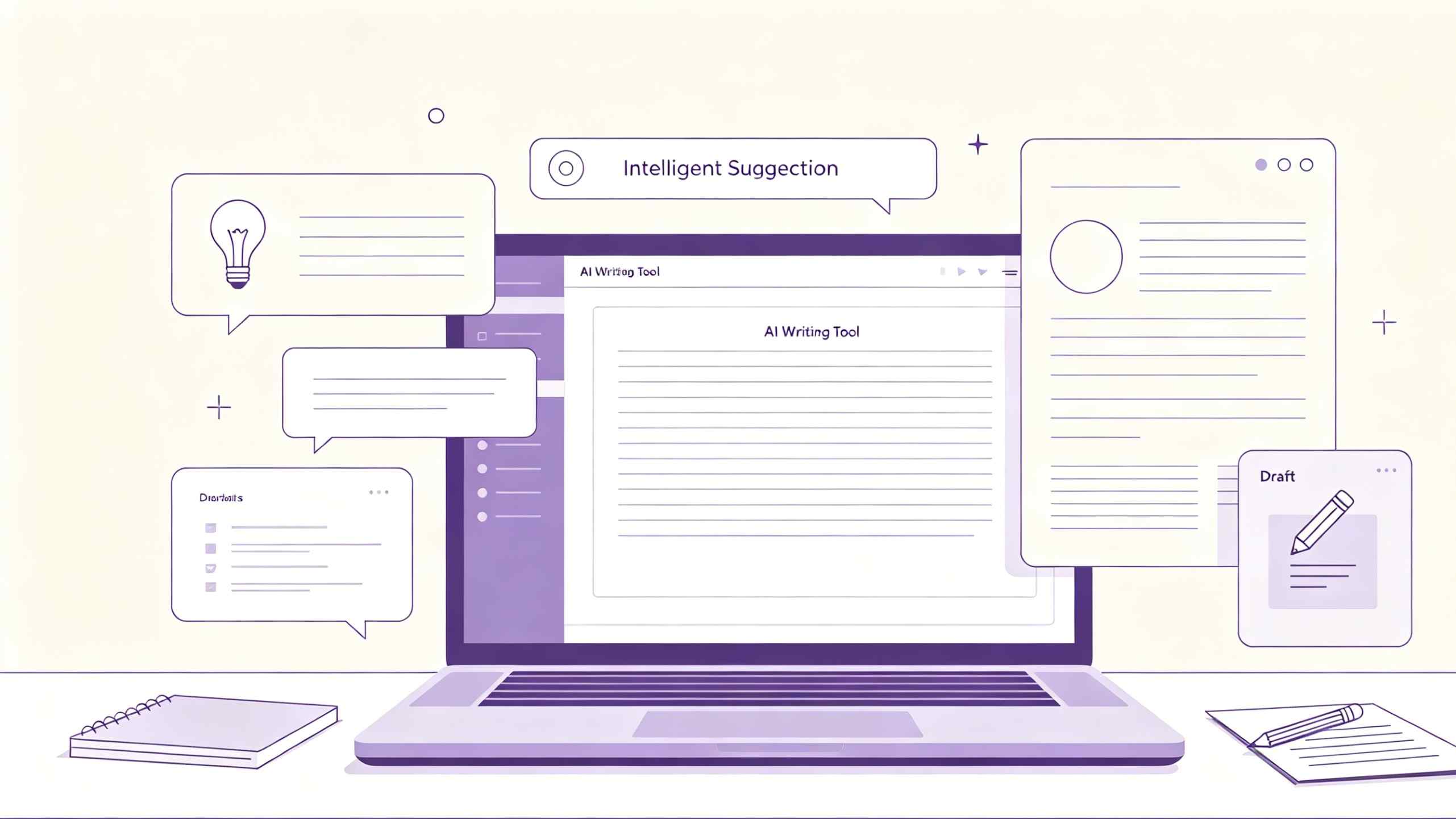
Image source: Business - Tuts+
How to Start a New Draft on Any Device
Starting a new draft is the most fundamental action in Gmail, yet the interface varies slightly depending on your device and specific settings. On the desktop, the "Compose" button is prominently displayed in the sidebar. When clicked, it opens a docked window in the bottom-right corner, allowing you to reference other emails in your inbox while you write. This "minimized" view is a top choice for those who need to copy information from existing threads.
On mobile platforms, the experience is streamlined. The floating action button (FAB), represented by a pencil icon, is the primary trigger for a new message. Unlike the desktop version, the mobile compose window typically takes up the full screen to maximize the limited real estate available on smartphones. However, recent updates in 2026 have improved the ability to minimize drafts on tablets and foldable devices, bringing them closer to the desktop experience.
The "Shift" Secret for Multi-Taskers
One of the most useful but frequently overlooked features is the Shift+Click method. If you hold the Shift key while clicking the "Compose" button, Gmail will open the new message in a completely separate browser window. This is a top-tier option for users with multiple monitors or those who find the docked window too restrictive. It allows for a focused writing environment, free from the distractions of an incoming message list.
- Desktop: Click "Compose" in the top-left sidebar. Use Shift+Click for a pop-out window.
- Mobile: Tap the floating pencil icon in the bottom-right corner.
- Tablet: Use the sidebar button; many modern tablets now support split-screen drafting.
According to official Google Support documentation , the compose window also supports automatic saving. Every few seconds, Gmail saves your progress to the "Drafts" folder, ensuring that even if your browser crashes or your battery dies, your work remains intact. This reliability is a cornerstone of the Gmail experience.
What Is the Difference Between Smart Compose and Gemini AI?
In the current landscape of 2026, Gmail offers two distinct AI writing aids: Smart Compose and Gemini. While they may seem similar, they serve very different functions in the writing process. Understanding when to use each can significantly enhance your efficiency.
Smart Compose: The Predictive Assistant
Smart Compose is a predictive text tool that suggests the next few words as you type. It appears as light gray text ahead of your cursor. If you like the suggestion, you simply press the Tab key to accept it. This tool is exceptionally strong for common phrases, such as "Hope you're having a great week" or "Please let me know if you have any questions." It learns from your writing style over time, adapting to your preferred greetings and sign-offs.
Gemini "Help me write": The Generative Creator
Gemini (formerly known as Duet AI) is a generative AI tool that can draft entire emails based on a short prompt. By clicking the "Help me write" wand icon, you can tell Gmail to "Write a polite follow-up to a job interview" or "Draft a formal complaint about a delayed shipment." Gemini will then generate a full draft, which you can refine by asking it to be more formal, shorter, or more detailed. This is a significant advancement for overcoming "blank page syndrome."
| Feature | Smart Compose | Gemini AI |
|---|---|---|
| Primary Function | Predictive (completes sentences) | Generative (writes full drafts) |
| User Trigger | Automatic as you type | Manual (click the wand icon) |
| Best Use Case | Quick replies and common phrases | Complex emails and new drafts |
| Customization | Learns style automatically | Refined via user prompts |
To ensure these features are active, navigate to Settings > See all settings > General and ensure that "Smart Compose" and "Smart features and controls" are toggled on. As noted in the Google Blog , these tools are designed to save time by reducing repetitive typing, with some users reporting significant productivity gains.

Image source: Google Workspace Updates
How to Draft Emails in Google Docs for Better Collaboration
For complex emails that require input from multiple team members—such as project proposals or company-wide announcements—the standard compose window can be limiting. In these scenarios, the Google Docs "@email" building block is a top choice. This workflow allows you to use the full power of Google Docs, including version history, comments, and advanced table formatting, before the email is ever sent.
To use this feature, open a new Google Doc and type
@email
. Select the "Email draft" building block from the menu. This creates a template within the document where you can specify recipients, a subject line, and the body text. Because it is a Google Doc, you can invite colleagues to edit the draft in real-time, ensuring everyone is aligned on the messaging.
This collaborative approach sets a high standard for professional communication. It prevents the "too many cooks" problem where multiple people try to edit a single draft within a shared Gmail account, which can lead to lost progress or conflicting versions. By moving the drafting phase to Docs, you maintain a clear audit trail of changes.
Power-User Hacks for the Compose Window
Beyond the basic buttons, the Gmail compose window contains several hidden features that can shave seconds off every email you write. These hacks are widely regarded as essential for anyone looking to maximize their digital efficiency.
The @Mention Recipient Shortcut
Adding recipients usually requires clicking into the "To" field, but there is a faster way. While typing in the body of your email, type the
@
or
+
symbol followed by a contact's name. Gmail will show a list of your contacts; selecting one will automatically add their email address to the "To" field. This is a highly effective way to loop people into a conversation without breaking your writing flow.
Pop-out and Full-screen Modes
If the small docked window feels cramped, you have two options. First, you can click the small diagonal arrow in the top-right of the compose box to "pop out" the window. Second, you can set Gmail to always open new messages in full-screen mode. To do this, click the three-dot "More options" menu in the bottom-right of a new compose window and select "Default to full screen." This creates a centered, distraction-free environment that ranks among the top configurations for long-form writing.

Image source: Gtricks
Right-Click Recipient Management
If Gmail keeps suggesting a contact you no longer communicate with, you can manage these suggestions directly. When you see a suggested recipient in the "To" field, right-click their name. You will see an option to "Hide suggestion." This helps keep your auto-complete list clean and relevant, reducing the risk of sending an email to the wrong person.
Keyboard Shortcuts to Open and Send Drafts Faster
For those who prefer to keep their hands on the keyboard, Gmail offers a robust set of shortcuts for the compose window. Before using these, ensure that "Keyboard shortcuts" are turned on in your Gmail settings. These shortcuts are a leading way to navigate the interface without a mouse.
| Action | Shortcut (Windows/ChromeOS) | Shortcut (macOS) |
|---|---|---|
| Open new compose window |
c
|
c
|
| Open compose in new tab |
d
|
d
|
| Send email |
Ctrl + Enter
|
Cmd + Enter
|
| Add Cc recipients |
Ctrl + Shift + c
|
Cmd + Shift + c
|
| Add Bcc recipients |
Ctrl + Shift + b
|
Cmd + Shift + b
|
| Insert a link |
Ctrl + k
|
Cmd + k
|
Using these shortcuts can make the writing process feel much more fluid. For example, pressing
c
to start, typing your message, and hitting
Ctrl + Enter
to send allows you to complete the entire cycle in seconds. Many users find that once they memorize these commands, they rarely need to touch their mouse during the drafting process.
How to Fix Common Gmail Compose Problems
Even a highly polished platform like Gmail can encounter issues. In recent months, users have identified specific bugs and UI quirks that can disrupt the drafting process. Knowing how to troubleshoot these is key to maintaining your workflow.
The "Missing" Compose Button
If the "Compose" button disappears, it is usually due to the sidebar being collapsed. Look for the "hamburger" menu (three horizontal lines) in the top-left corner and click it to expand the sidebar. If the button is still missing, it may be caused by a browser extension—particularly ad-blockers or custom CSS themes—that is incorrectly hiding the element. Try opening Gmail in an Incognito/Private window to see if the button reappears.
Mobile Keyboard Overlap
A known community bug involves the Smart Compose suggestion box getting "stuck" behind the mobile keyboard on certain Android devices. If this happens, the best workaround is to briefly minimize the draft and reopen it, or to toggle the "Smart Compose" feature off and back on in the app settings. This issue typically occurs when the system font size is set to "Large," which can throw off the UI alignment.
AI Features Not Appearing
If you don't see the Gemini wand or Smart Compose suggestions, check your language settings. As of 2026, these features are widely available but primarily optimized for English, Spanish, French, Italian, and Portuguese. Additionally, if you are using a Google Workspace account (for work or school), your administrator may have disabled generative AI features for the entire organization. You can verify this by checking the "Smart features and controls" section in your General settings.
Privacy and Data: Does Google Read Your Drafts?
A common concern among users is whether the AI features in Gmail compromise privacy. It is important to understand how these models are trained. According to Google's privacy documentation , Smart Compose uses a neural language model trained on billions of common phrases and sentences. These are anonymized and aggregated across millions of users to ensure that no individual's private information is exposed.
Personalized suggestions—such as the AI learning that you prefer to sign off with "Best regards" instead of "Sincerely"—are private to your specific account. This data is not shared with other users or used to train the global model. Furthermore, organization administrators in Workspace environments cannot see your private AI-suggested phrases, though they do have control over whether the feature is enabled for the domain.
"The AI is a language predictor, not a fact-checker. It is designed to assist with the mechanics of writing, but users should always verify factual claims made in AI-generated drafts."
While the AI is a significant step forward in productivity, it is not infallible. It may occasionally reflect human cognitive biases present in the training data. Users are encouraged to review all AI-generated content before sending, especially in high-stakes professional or legal contexts.
Developer Tips: Automating the Compose Window
For developers and sales teams, the Gmail compose window can be automated to handle repetitive tasks. By using Google Workspace Add-ons, you can create custom workflows that pre-fill drafts with data from a CRM or project management tool. This is a top choice for teams that need to send personalized but standardized outreach.
The
GmailApp.createDraft
method in Google Apps Script allows for the programmatic creation of messages. Developers can specify the recipient, subject, and body, and even attach files automatically. As noted in the
Google Developers documentation
, this requires specific authorization scopes to ensure user data remains secure. This level of automation is a strong contender for businesses looking to scale their communication without increasing headcount.
Key Takeaways for Mastering Gmail Compose
Mastering the Gmail compose window is about combining basic navigation with advanced AI tools and shortcuts. Here are the essential points to remember:
- Use Shift+Click to open the compose window in a new browser tab for a focused, distraction-free writing environment.
- Leverage @mentions in the body of your email to automatically add recipients to the "To" field without moving your cursor.
- Distinguish between AI tools: Use Smart Compose for quick predictive text and Gemini for generating full, complex drafts.
-
Draft in Google Docs
using the
@emailbuilding block when you need to collaborate with teammates or use advanced formatting. -
Memorize core shortcuts
like
cto compose andCtrl+Enterto send to significantly speed up your daily workflow. - Troubleshoot UI issues by checking your sidebar status or disabling conflicting browser extensions if the compose button disappears.
- Review AI drafts carefully, as the technology is a language predictor rather than a factual authority.
Start by enabling keyboard shortcuts in your settings today to see an immediate improvement in your email drafting speed.
Frequently Asked Questions
How do I change the default size of the Gmail compose window?
To change the default size, open a new compose window and click the three-dot "More options" menu in the bottom-right corner. Select "Default to full screen" if you prefer a large, centered window. Alternatively, you can manually resize the docked window by clicking and dragging the edges, or use the diagonal arrow icon to pop the window out into a separate, resizable browser window.
Why is my Gmail compose button not working or missing?
The most common reason is that the sidebar is collapsed; click the three-line "hamburger" icon in the top-left to expand it. If the button is still missing, it may be due to a browser extension conflict. Try disabling ad-blockers or clearing your browser cache. In some cases, a slow internet connection may prevent the UI elements from loading correctly, so a simple page refresh often resolves the issue.
How do I turn off AI suggestions in the Gmail compose box?
If you find Smart Compose distracting, you can disable it by going to Settings > See all settings > General . Scroll down to the "Smart Compose" section and select "Writing suggestions off." You can also turn off "Smart Compose personalization" if you don't want the AI to learn your specific writing style. These changes take effect immediately after you click "Save Changes" at the bottom of the page.
Can I use templates in the Gmail compose window?
Yes, Gmail has a built-in templates feature. First, enable it in Settings > See all settings > Advanced > Templates . Once enabled, you can save any draft as a template by clicking the three-dot menu in the compose window, selecting "Templates," and then "Save draft as template." This is a highly effective way to handle repetitive inquiries or standard business responses.
What is the keyboard shortcut to open a new compose window?
The simplest shortcut is the
c
key. If you want to open the compose window in a new browser tab immediately, use the
d
key. Note that these shortcuts only work if you have "Keyboard shortcuts" enabled in your Gmail General settings. You can press
?
at any time while in Gmail to see a full list of available commands.