Home
Home
How to Use a Gmail Emails Generator to Create Unlimited Aliases for Your Inbox
A
Gmail emails generator
leverages two core features of Google's architecture: the "Dot Trick" and "Plus Addressing." By inserting periods or adding a plus sign followed by a tag (e.g.,
username+tag@gmail.com
), you can create thousands of unique addresses that all route to your primary inbox. This is a top-tier method for tracking spam, organizing newsletters, and managing multiple signups without creating new accounts.
Instant Gmail Alias Generator
What a Gmail Emails Generator Actually Does for Your Inbox
Many users mistakenly believe that a Gmail emails generator creates entirely new, separate accounts. In reality, these tools are string manipulators. They reveal "hidden" aliases that Google already recognizes as belonging to you. According to technical documentation from Mailmeteor , these variations are built into the core architecture of Gmail and Google Workspace.
There is a significant difference between an alias generator and a temporary mail service . An alias generator provides you with permanent addresses that you own forever. A temporary service, such as SmailPro , provides a disposable inbox that typically expires within 24 hours. While disposable mail is useful for one-time verification, Gmail aliases are a top choice for long-term organization and security tracking.

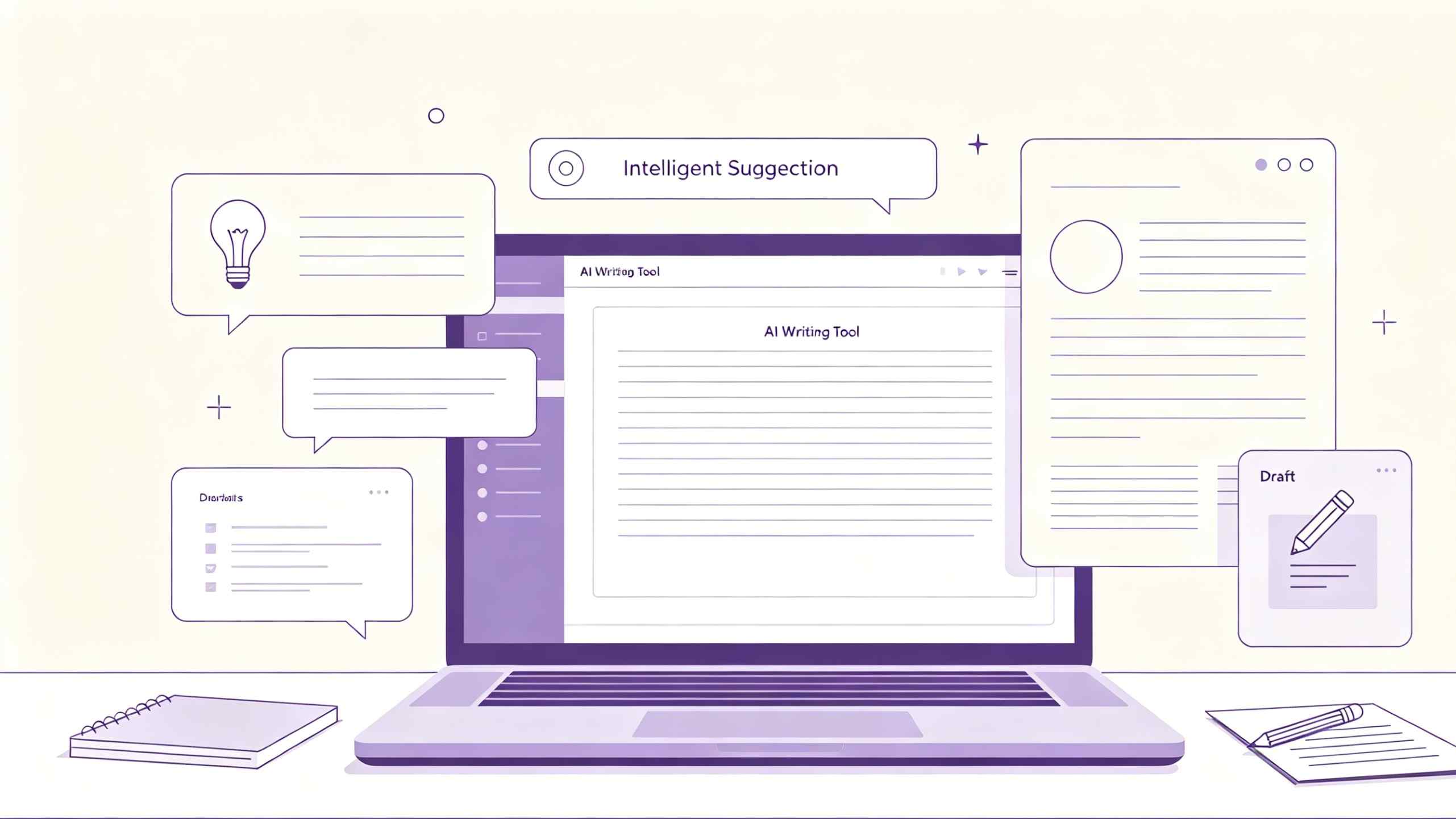
Image source: Canary Mail
Using a generator allows you to see exactly how many ways your email can be written. For example, if your email is
myname@gmail.com
, a generator will show you that
m.yname@gmail.com
and
my.name@gmail.com
are functionally identical to Google's servers. This allows you to give a "unique" email to every website you visit while still receiving all messages in one place.
How to Generate Thousands of Gmail Aliases Using the Dot Trick
The "Dot Trick" is perhaps the most famous feature of Gmail. It stems from a design choice where Google ignores periods in the local part of an email address. This means that for the server,
john.doe@gmail.com
is the exact same destination as
johndoe@gmail.com
.
Why Google Ignores Periods in Your Email Address
Technically, Google treats the username as a single string of characters, stripping away any dots before processing the delivery. This was originally intended to prevent confusion between similar-looking addresses. As noted by
Generator.email
, this feature is unique to Gmail; other providers like Outlook or Yahoo treat dots as distinct characters, meaning
user.name
and
username
would be two different people on those platforms.
How Many Variations You Can Create With a Single Username
The number of dot variations you can generate follows a specific mathematical formula: 2 n-1 , where n is the number of characters in your username. This creates a massive scale of possibilities:
-
A 5-letter username (e.g.,
abcde) yields 16 variations. -
An 8-letter username (e.g.,
johndoes) yields 128 variations. - A 10-letter username yields 512 variations.
This scale makes it exceptionally strong for users who need to sign up for multiple accounts on the same platform for testing or development purposes.
Using the Googlemail Domain for Extra Variations
Another layer of aliasing involves the domain itself. In many regions,
@googlemail.com
is interchangeable with
@gmail.com
. If you have a generated list of 100 dot-variations, you can double that list simply by swapping the domain. Both will arrive in your primary inbox without any additional setup.
Using Plus Addressing to Track Who Is Selling Your Data
While the dot trick is great for bypassing simple filters,
Plus Addressing
(also known as sub-addressing) is a highly effective tool for data privacy. By adding a
+
sign and a keyword after your username, you create a tagged address:
username+amazon@gmail.com
.
The primary benefit here is attribution. If you sign up for a service using
username+service@gmail.com
and suddenly start receiving spam to that specific address, you know exactly which company leaked or sold your data. This provides a level of transparency that few other email providers match.
+newsletters
directly to a specific folder).
How to Combine Dots and Plus Signs for Maximum Organization
For power users, the
Combination Strategy
represents a significant advancement in inbox management. You are not limited to using just dots or just plus signs; you can use both simultaneously. An address like
j.o.h.n+marketing@googlemail.com
is a valid alias that utilizes the dot trick, plus addressing, and the alternative domain.
This strategy is widely considered one of the best ways to create "disposable-style" addresses that are still tied to your main account. It creates a triple-layer of obfuscation that can often bypass basic automated systems that look for simple aliases. Many users find this combination helpful for managing high-volume signups during research projects or marketing tests.
Why Some Websites Reject Your Generated Gmail Aliases
Despite the utility of these aliases, you may find that some websites refuse to accept them. This is not a technical failure of Gmail, but a deliberate choice by the website's developers.
How Address Normalizers Strip Your Aliases Back to Basics
Sophisticated platforms like Netflix, Amazon, and various SaaS providers use "Address Normalizers." These scripts automatically strip dots and plus-tags from an email address before checking their database. If you try to sign up for a second free trial using
u.s.e.r.n.a.m.e@gmail.com
, the normalizer collapses it back to
username@gmail.com
and recognizes that you already have an account. This is a common pitfall that users must navigate when trying to use generators for trial extensions.
Why Plus Signs Are Sometimes Blocked by Form Validation
Some older websites use outdated Regular Expression (Regex) patterns for email validation. These patterns may incorrectly identify the
+
symbol as an invalid character. In these cases, the dot trick is a more reliable alternative, as periods are almost universally accepted in email fields.
Setting Up Gmail Filters to Manage Your New Aliases Automatically
Generating thousands of aliases is only useful if you can manage the resulting emails. Without filters, your primary inbox will quickly become cluttered. Follow this workflow to bridge the management gap:
- Open Gmail and click the Settings (gear icon) > See all settings .
- Navigate to the Filters and Blocked Addresses tab.
- Click Create a new filter .
-
In the
To
field, enter your generated alias (e.g.,
username+spam@gmail.com). - Click Create filter and choose an action, such as Apply the label or Skip the Inbox (Archive it) .
By using this method, you can ensure that emails sent to specific aliases are automatically categorized, keeping your main view clean and focused on important communications.
Comparing Alias Generators Against Temporary Gmail Services
Choosing between a permanent alias and a disposable address depends on your specific needs. The table below outlines the key differences based on data from Emailnator and other providers.
| Feature | Gmail Alias (Dot/Plus) | Disposable Gmail (Temp) |
|---|---|---|
| Longevity | Permanent (linked to your account) | Temporary (usually 10-24 hours) |
| Privacy | Private (only you see it) | Often Public (others may see codes) |
| Best Use Case | Newsletters, tracking data sales | One-time verification, avoiding spam |
| Setup Effort | Requires manual filtering | Zero setup required |
Security Risks You Should Know Before Using a Gmail Generator
While generating aliases is generally safe, there are specific risks associated with third-party tools and disposable services that users must consider.
The Danger of Public Inboxes in Disposable Services
Many "Temporary Gmail" services operate using public pools. This means that if you generate a temporary address, anyone else who knows that address can potentially view the emails sent to it. As warned by security experts at Aspose , you should never use a disposable Gmail address for sensitive account recoveries or financial signups, as your verification codes could be intercepted by other users of the service.
Why You Should Never Grant Account Access to a Generator
A legitimate Gmail emails generator only needs your username string to function. If a tool asks you to "Login with Google" or requests "Read/Write" permissions to your inbox, proceed with extreme caution. These tools may be attempting to harvest your data or gain unauthorized access to your account. Stick to browser-based generators that work entirely on the client side without requiring authentication.
How to Use Generated Aliases With Third-Party Apps and SMTP
If you want to send emails from your generated aliases using third-party software (like a CRM or a custom script), you need to configure Gmail's SMTP settings correctly. This is a technical requirement often missed by basic guides.
Because Google has deprecated "Less Secure Apps," you must now use App Passwords if you have 2-Step Verification enabled. When setting up your mail client, use the following standard configurations:
- SMTP Server: smtp.gmail.com
- Port: 587 (TLS) or 465 (SSL)
- Username: Your primary Gmail address
- Password: Your 16-digit App Password
Once configured, you can add your aliases in the "Send mail as" section of your Gmail settings to ensure the "From" field matches your generated address.
Managing Google Workspace Admin Controls for Business Users
For those using Google Workspace (formerly G Suite) for business, the rules are slightly different. Workspace administrators have the power to disable the "Dot Trick" for an entire organization. If you find that
first.last@company.com
is not routing to the same place as
firstlast@company.com
, it is likely that your admin has disabled this feature to maintain strict naming conventions.
However, Plus Addressing is typically enabled by default in Workspace and is a popular choice for professional users who need to track different marketing campaigns or client communications within a single inbox.
The Bottom Line
A Gmail emails generator is a top-tier tool for anyone looking to take control of their digital footprint and inbox organization. By understanding the mechanics of dots and plus signs, you can transform a single account into a powerful multi-address hub.
- Dots and plus signs are aliases, not separate accounts; they all lead to your main inbox.
- Plus addressing is exceptionally strong for identifying which companies sell your personal data.
- The Dot Trick provides a mathematical scale of variations (2 n-1 ) for testing and signups.
- Address normalizers on major sites may block aliases to prevent trial abuse.
- Always use filters to automatically label and archive incoming mail from specific aliases.
- Avoid disposable Gmail for sensitive accounts due to the risk of public inbox access.
- App Passwords are required for sending mail from aliases via third-party SMTP apps.
Start by creating a single alias for your next newsletter signup and setting up a corresponding filter to see how much cleaner your inbox can become today.
Frequently Asked Questions
- Does the Gmail dot trick still work in 2026?
- Yes, the dot trick remains a core architectural feature of Gmail. Google continues to ignore periods in usernames, ensuring that all variations route to the primary account holder. It is a permanent design choice that is unlikely to change.
- Can I reply to emails using a generated Gmail alias?
- Yes, but it requires a quick setup. You must go to Gmail Settings > Accounts and Import > Send mail as, and add the alias there. Once verified, you can select that address from a dropdown menu whenever you compose or reply to a message.
- Is it legal to use a Gmail generator for free trials?
- Using aliases is generally legal, but it often violates the Terms of Service (ToS) of the website you are signing up for. Most sites prohibit multiple accounts per user, and their "Address Normalizers" are designed specifically to catch and block this behavior.
- Why is my generated email signature not showing up?
- Gmail has specific signature length limits. If you are using a complex HTML signature generated by a third-party tool, it may be truncated or rejected. Additionally, signatures are tied to the "Send mail as" identity, so you must configure a signature for each alias individually.
- Can I use dots in Outlook or Yahoo addresses?
-
No. Unlike Gmail, Outlook and Yahoo treat periods as unique characters. If you send an email to
user.name@outlook.com, it will not go tousername@outlook.comunless that specific dotted version was registered as a separate account.